DriveMate 4.3
New Features
Google Drive Folder Component - App Pages, Home Pages, and Experience Cloud
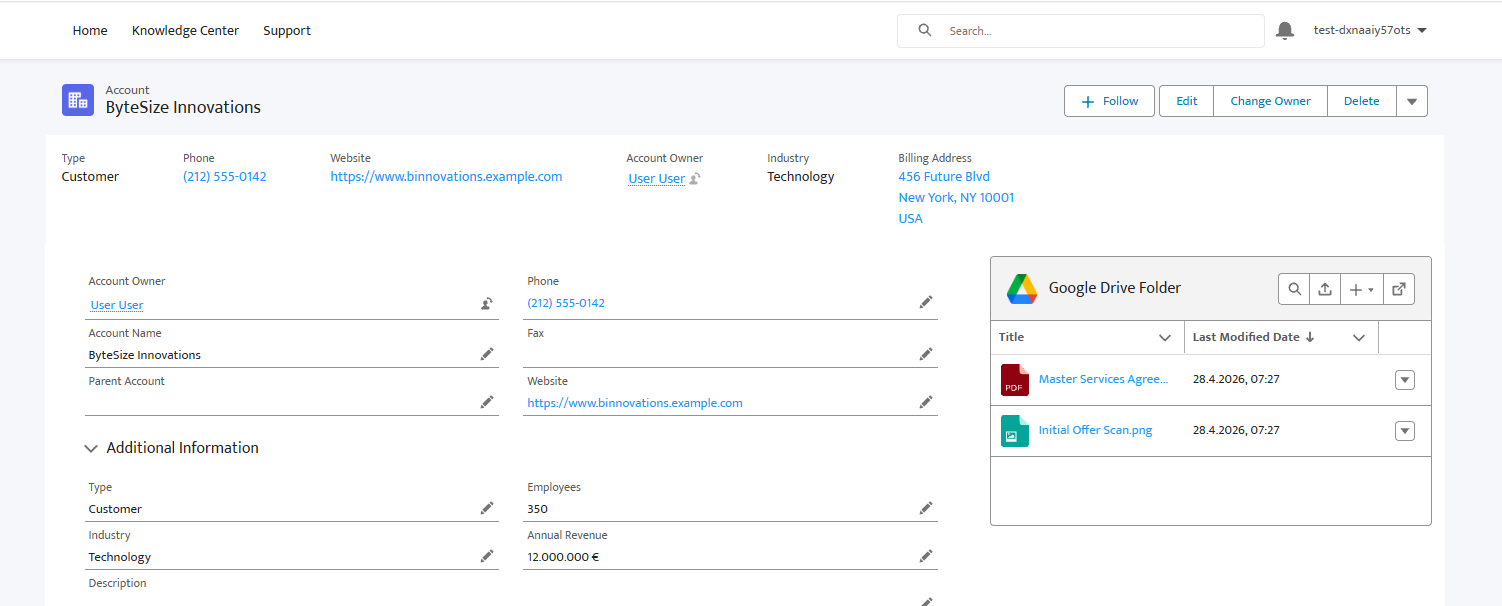
The DriveMate - Google Drive Folder component is no longer limited to internal Salesforce record pages. You can now place it on app pages, home pages, and Experience Cloud pages, in addition to record pages.
The component supports two configuration modes:
- Record-linked mode - display the folder associated with a Salesforce record. Set Record ID and Folder field name. Typical placements include record pages and Experience Cloud record-detail pages.
- Fixed-folder mode - display one specific shared folder that is not tied to a record. Set Folder ID. Typical placements include app pages, home pages, and Experience Cloud landing or custom pages.
This makes it possible to build shared document libraries, partner portals, and customer-facing file views without requiring a record page context.
Documentation Reference
Drive File and Folder Access Management
DriveMate 4.3 introduces full Google Drive access management - both in the UI and through Flow/Apex automations.
In the Component
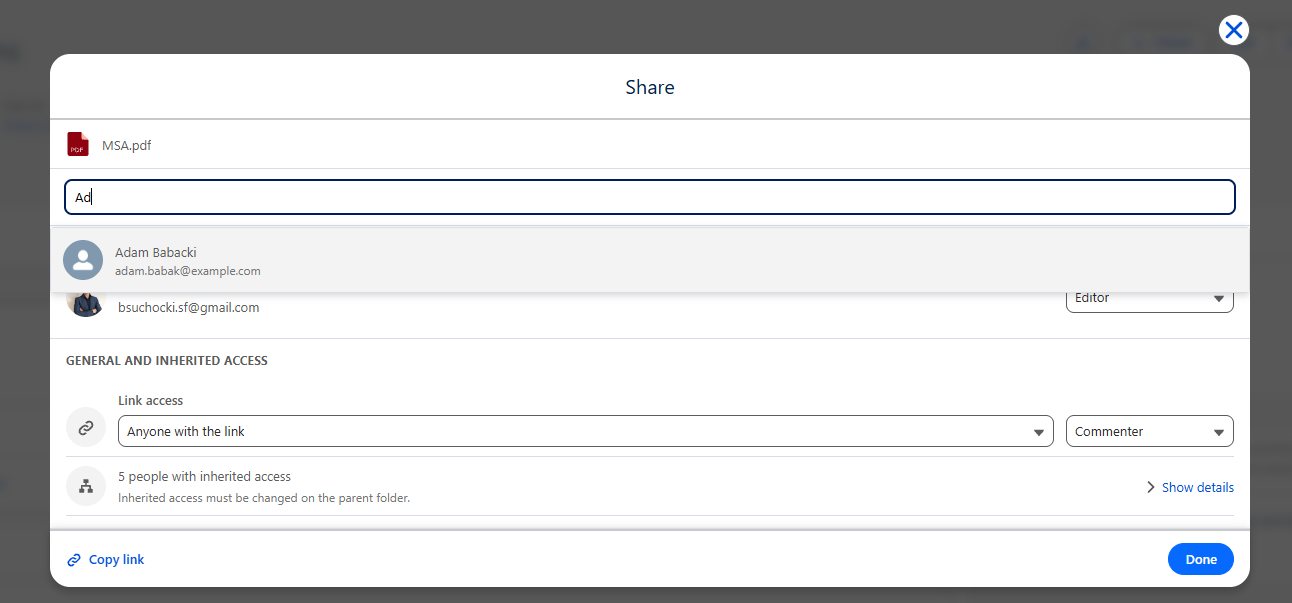
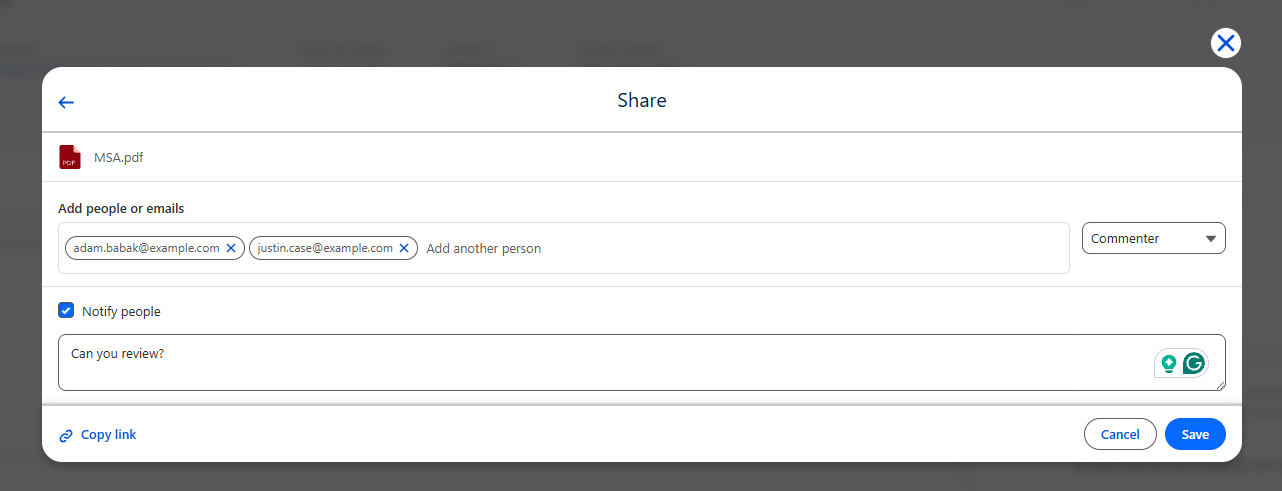
When Show share option? component property is enabled, users can manage who can access the current folder or individual files and subfolders directly from the component. The share modal supports:
- Reviewing existing direct and inherited permissions
- Adding recipients by Salesforce user search or email address
- Changing access levels and removing direct access
- Adjusting general access (restricted or anyone with the link)
Available Actions
- Share Drive Item - grant direct access to a file or folder for specified email addresses without reducing existing access.
- Update Drive Item Sharing - set direct access to an exact level for each recipient, including downgrades and removal of direct access.
- Get Drive Item Permissions - retrieve direct permissions, inherited permissions, and current public link sharing settings.
- Update Drive Item General Access - enable or disable anyone-with-the-link access and set the link role.
Note: See Automations Overview for the full up-to-date list of all file management actions.
Documentation Reference
Upgrade Required Actions
If you upgrade from any DriveMate 4.0 or earlier version and already have the DriveMate - Google Drive Folder component on record pages, you need to perform one manual step on each affected page to enable file sharing.
The Show share option? property is enabled by default in this release. However, Salesforce does not automatically apply new default component property values to pages that were configured before the package upgrade. To activate sharing on existing record pages:
- Open Lightning App Builder and edit each record page where the component is embedded.
- Click the DriveMate - Google Drive Folder component (no property changes are required).
- Save the page.
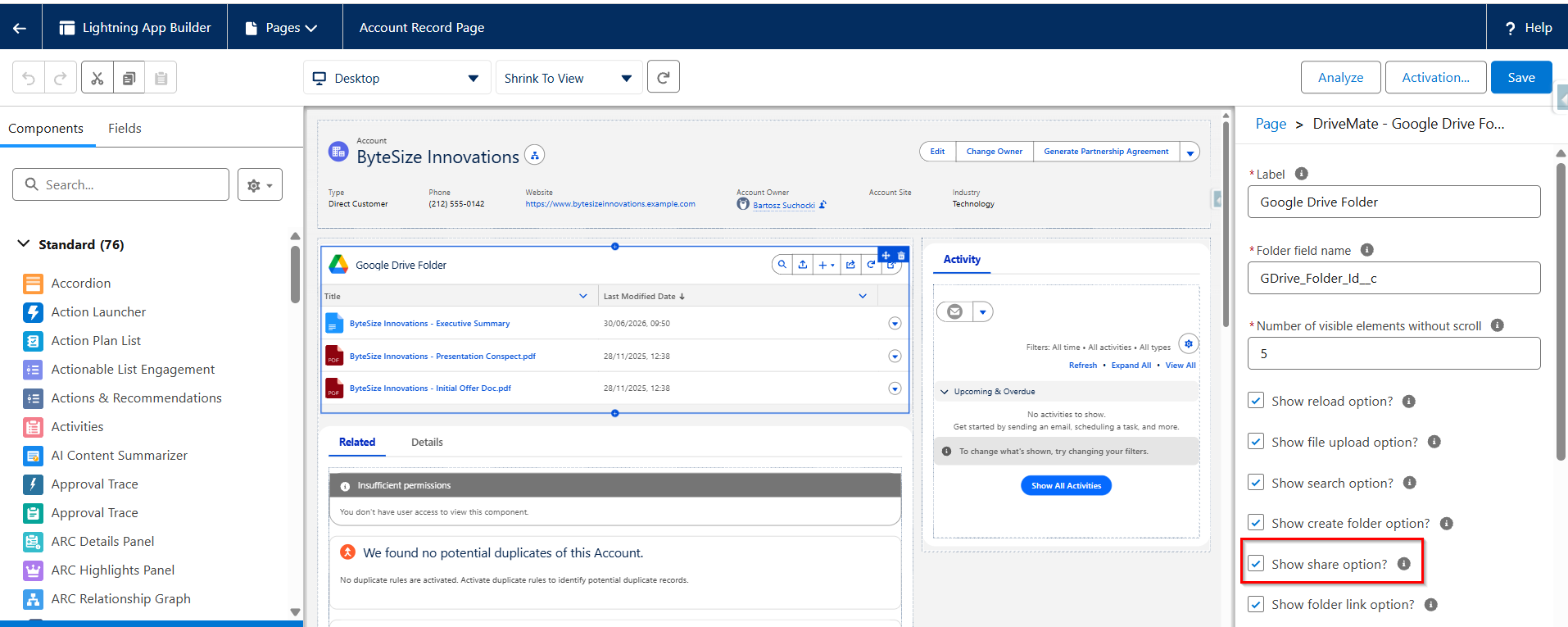
After saving, the share option will be available on that page according to the component configuration.
This step applies only to record pages that already had the component before upgrading. Newly added component instances pick up the default automatically.