Google Drive Folder Component
DriveMate - Google Drive Folder is the main UI component for browsing and managing files in a Google Drive folder directly from Salesforce.
It can be placed on:
- Record pages
- App pages
- Home pages
- Experience Cloud pages
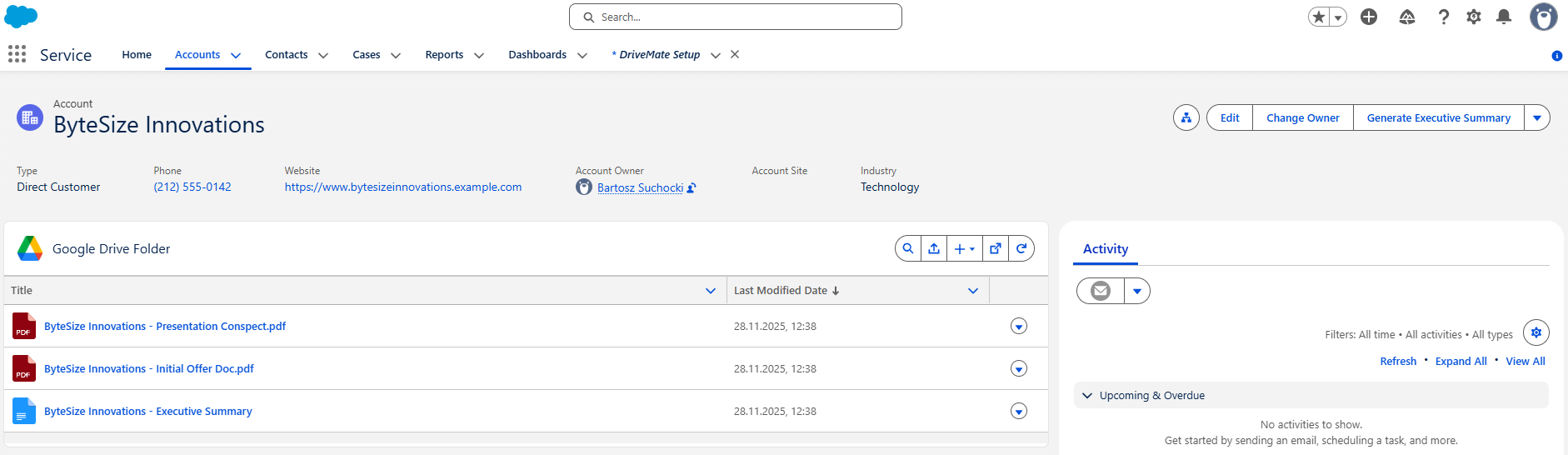
Configuration modes
The component supports two ways to determine which Google Drive folder to display.
1) Record-linked mode
Use this mode when each Salesforce record has its own folder.
Required inputs:
- Record ID
- Folder field name (the object field that stores the Google Drive folder ID)
Typical placements:
- Record pages
- Experience Cloud record-detail pages
2) Fixed-folder mode
Use this mode when you want a global/shared folder view that is not tied to a specific record.
Required input:
- Folder ID
Typical placements:
- App pages
- Home pages
- Experience Cloud landing/custom pages
Component Configuration
Use these steps when you want to add the component quickly in any page builder.
-
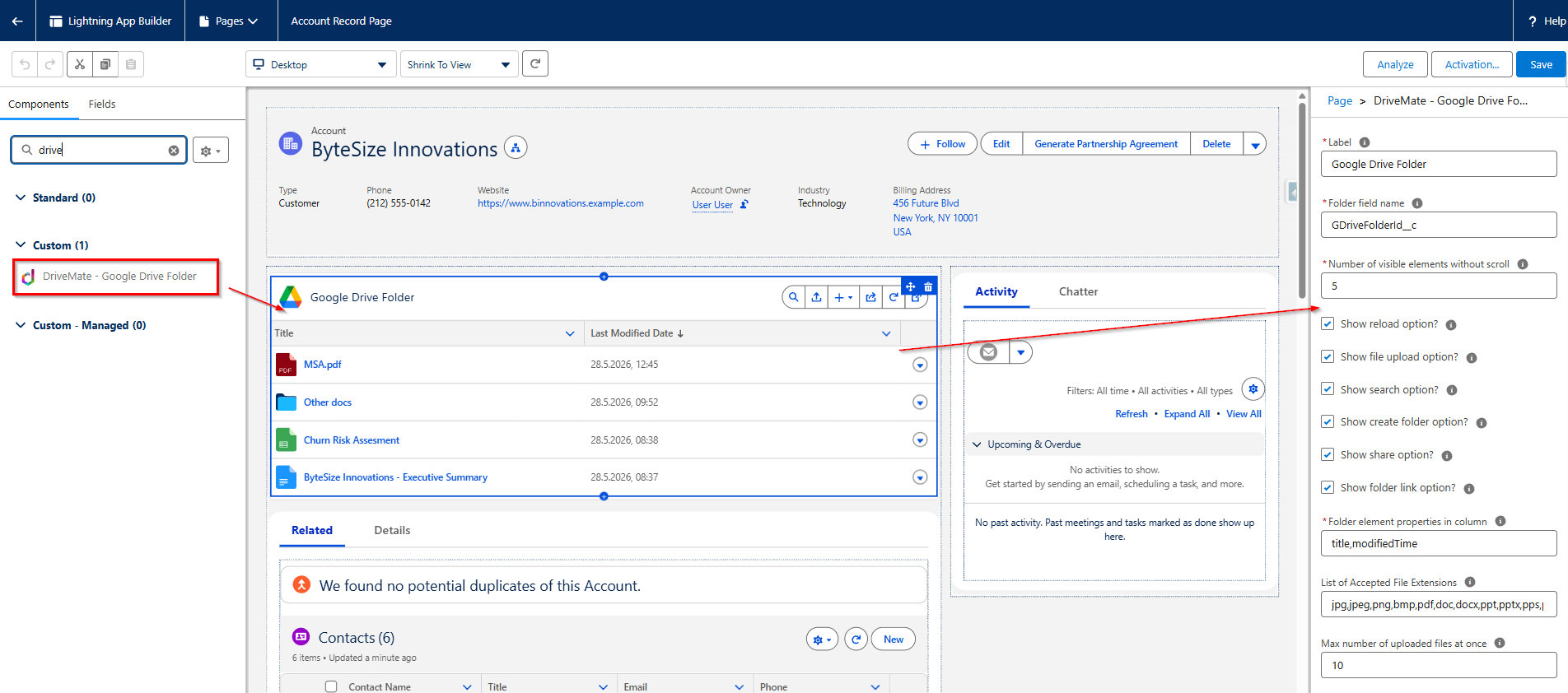
Open the page in edit mode (record page, app page, home page, or Experience Cloud page in the Experience Builder).
-
Drag DriveMate - Google Drive Folder onto the page layout.
-
In component properties, choose the configuration mode:
- Record-linked mode: set Record ID and Folder field name.
- Fixed-folder mode: set Folder ID.
-
Configure remaining options (for example upload, search, share, columns, limits).
-
Save (and publish, if applicable).
Properties Reference
The following properties are available depending on placement context:
- Label - Sets the title shown in the component header.
- Record ID - Identifies which Salesforce record should be used to resolve the folder (record-linked mode).
- Folder field name - Tells the component which field on the current record stores the Google Drive folder ID.
- Folder ID - Points the component directly to one specific Google Drive folder (fixed-folder mode).
- Number of visible elements without scroll - Controls how many rows are visible before the table becomes scrollable.
- Show reload option? - Shows or hides the manual refresh action.
- Show file upload option? - Shows or hides the upload action.
- Show search option? - Shows or hides the search action.
- Show create folder option? - Shows or hides folder creation actions.
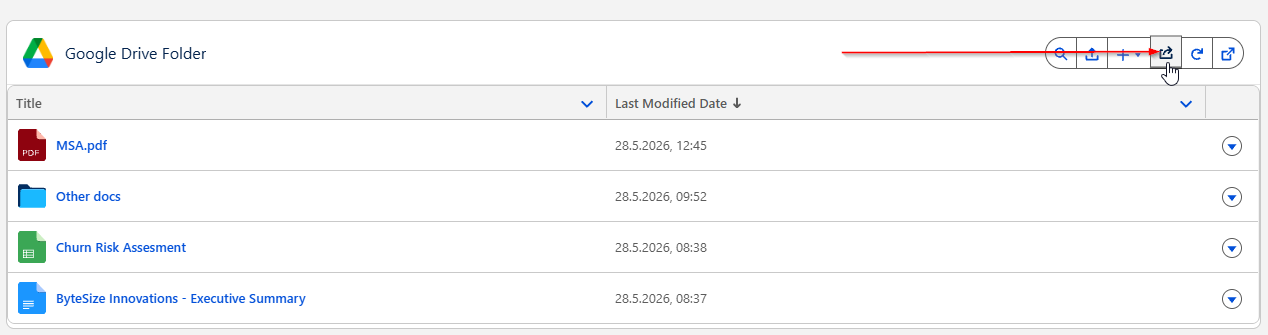
- Show share option? - Shows or hides Share actions in the toolbar and row menu for managing Google Drive access permissions.
- Show folder link option? - Shows or hides the action that opens the folder directly in Google Drive.
- Show errors inside the component? - When selected, folder load errors (for example an invalid Google Drive Folder Id) appear inside the component instead of as a toast on the page. Leave unchecked to keep the current toast messages.
- Folder element properties in column - Chooses which file/folder attributes appear as table columns.
- List of accepted file extensions - Limits uploadable files to selected extensions.
- Max number of uploaded files at once - Limits how many files can be uploaded in one upload action.
What users can do in the component
Once configured, users can manage files and folders directly in Salesforce.
Uploading files to Google Drive
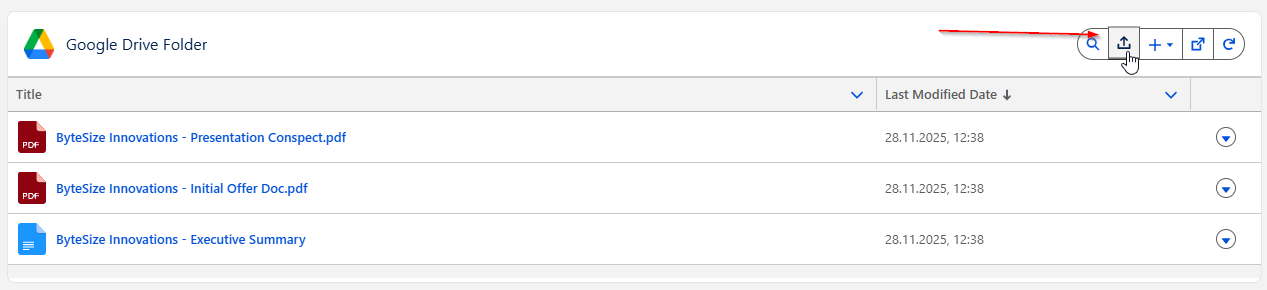
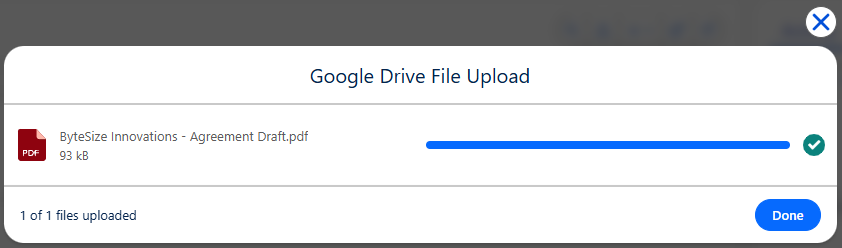
Users can upload files with the upload action or by drag-and-drop.
Creating a new folder
Use New > Folder to create a subfolder.

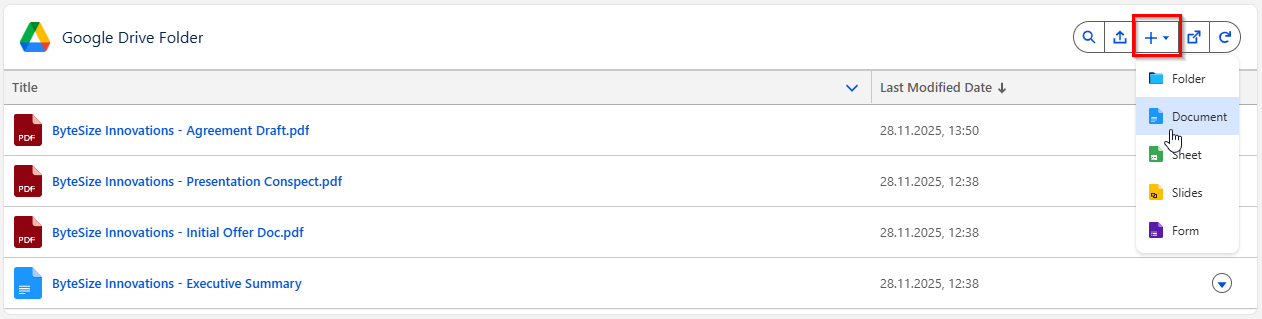
Creating Google Workspace files
Use New to create Google Workspace files (such as docs, sheets, or slides).
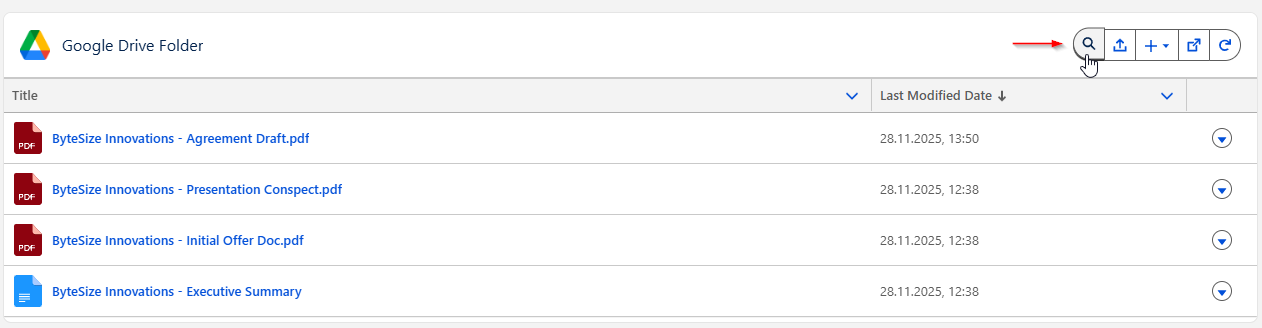
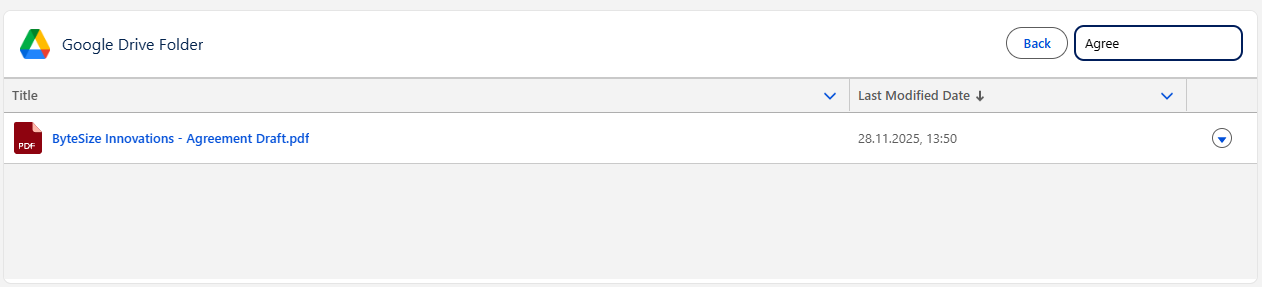
Searching for files and folders
Use the search action to filter current folder contents.
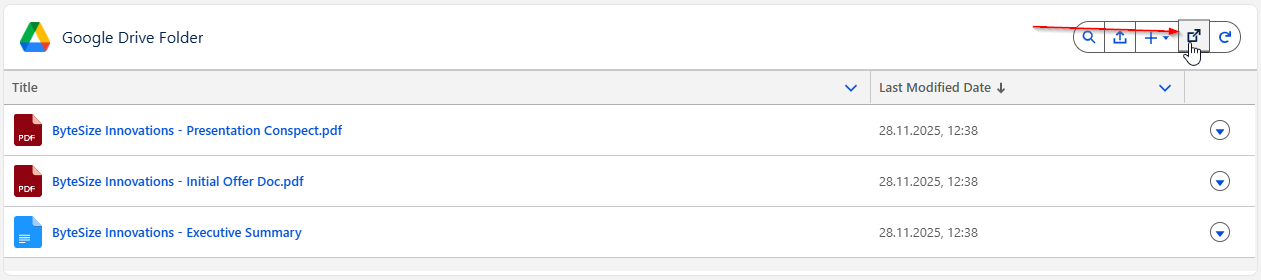
Opening the folder in Google Drive
Use Open in Google Drive to open the current folder directly in Google Drive.
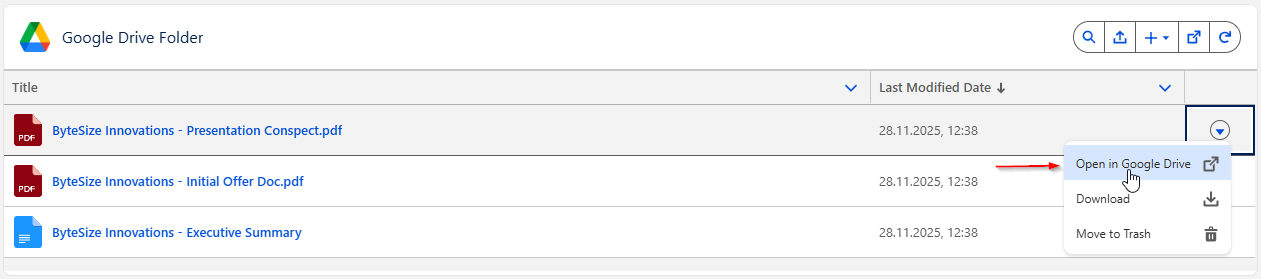
Opening an individual file in Google Drive
Use row actions to open a specific file in Google Drive.
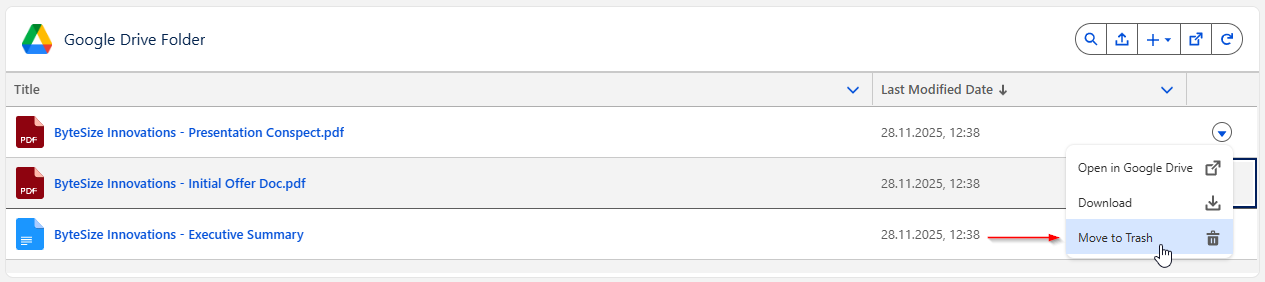
Trashing files
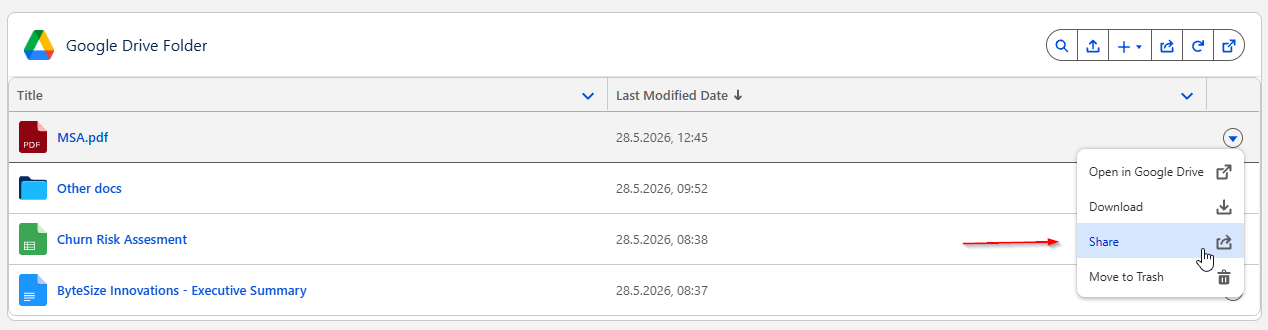
Use row actions to move files to trash.
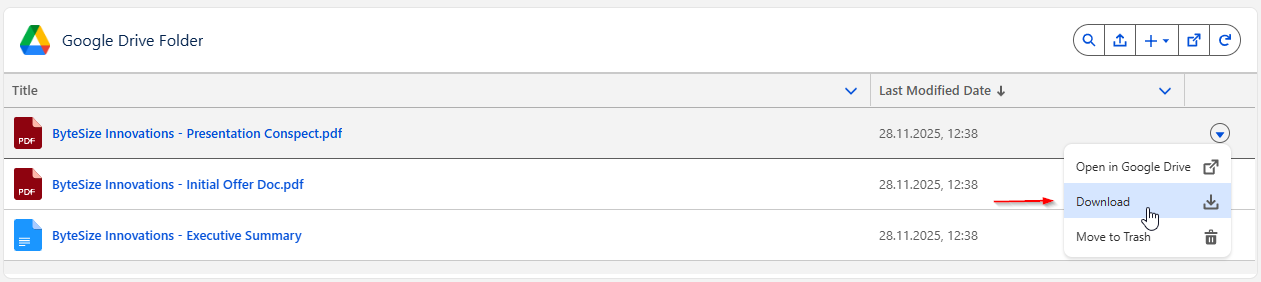
Downloading files
Use row actions to download files.
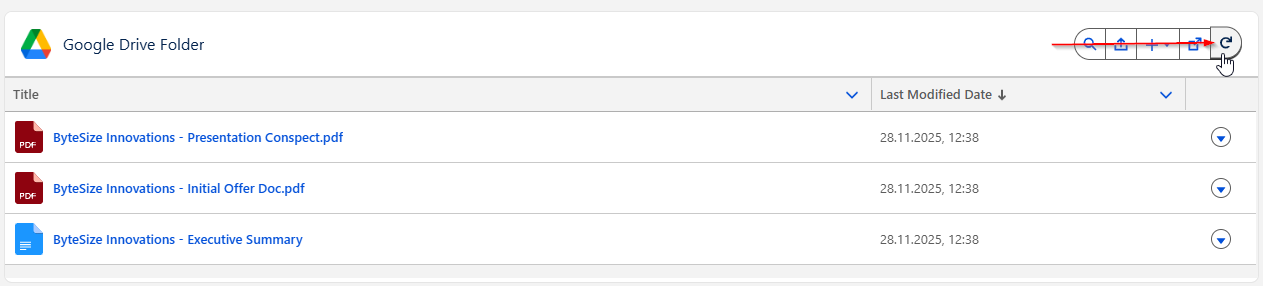
Reloading folder contents
Use Reload to refresh the list after external changes in Google Drive.
Managing file access
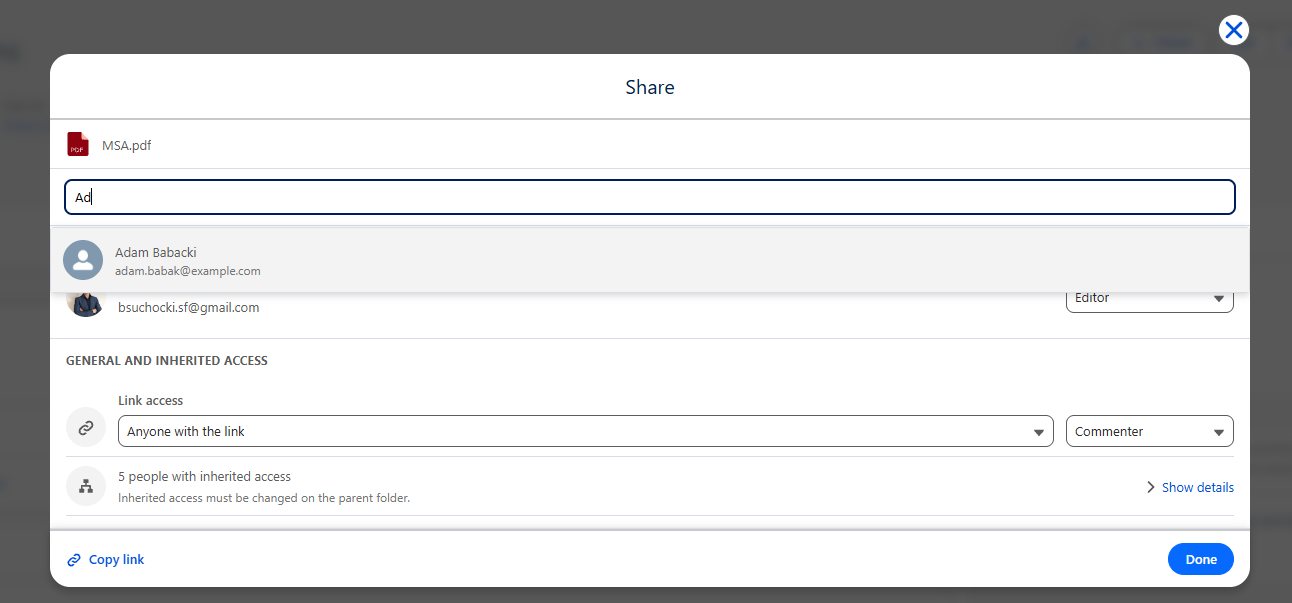
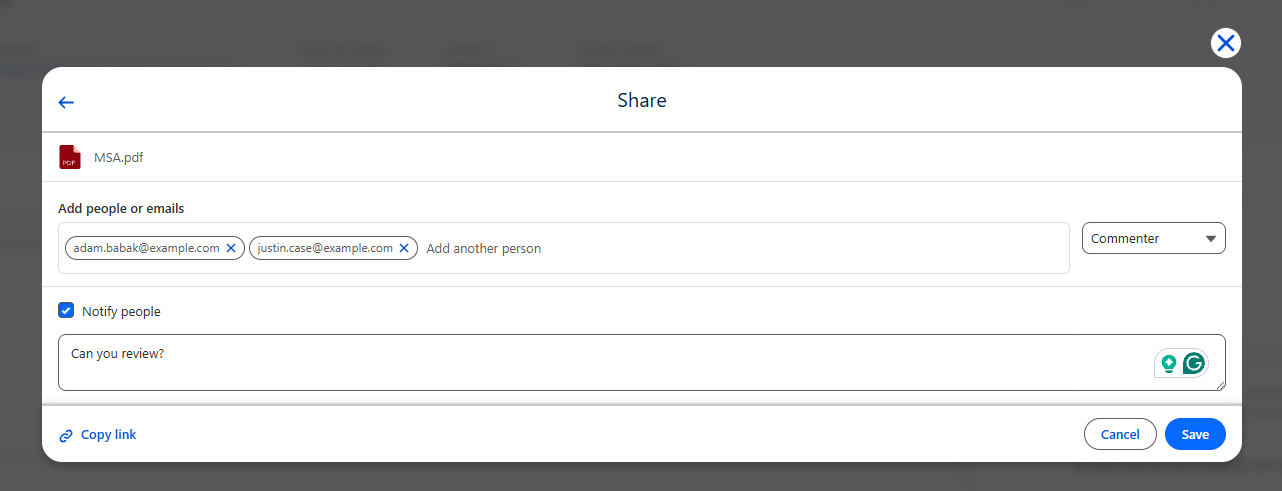
Use Share to manage who can access the current folder or an individual file. You can review existing permissions, change access levels, remove access, adjust general access (restricted or anyone with the link), and add people by searching Salesforce users or entering an email address.
Share the entire folder from the toolbar:
Share an individual file or subfolder from row actions:
The share modal shows current access and general sharing settings:
Add recipients and choose their access level before saving:
For step-by-step scenario guides: