DriveMate 3.0
· 2 min read
New Features
Document Generation
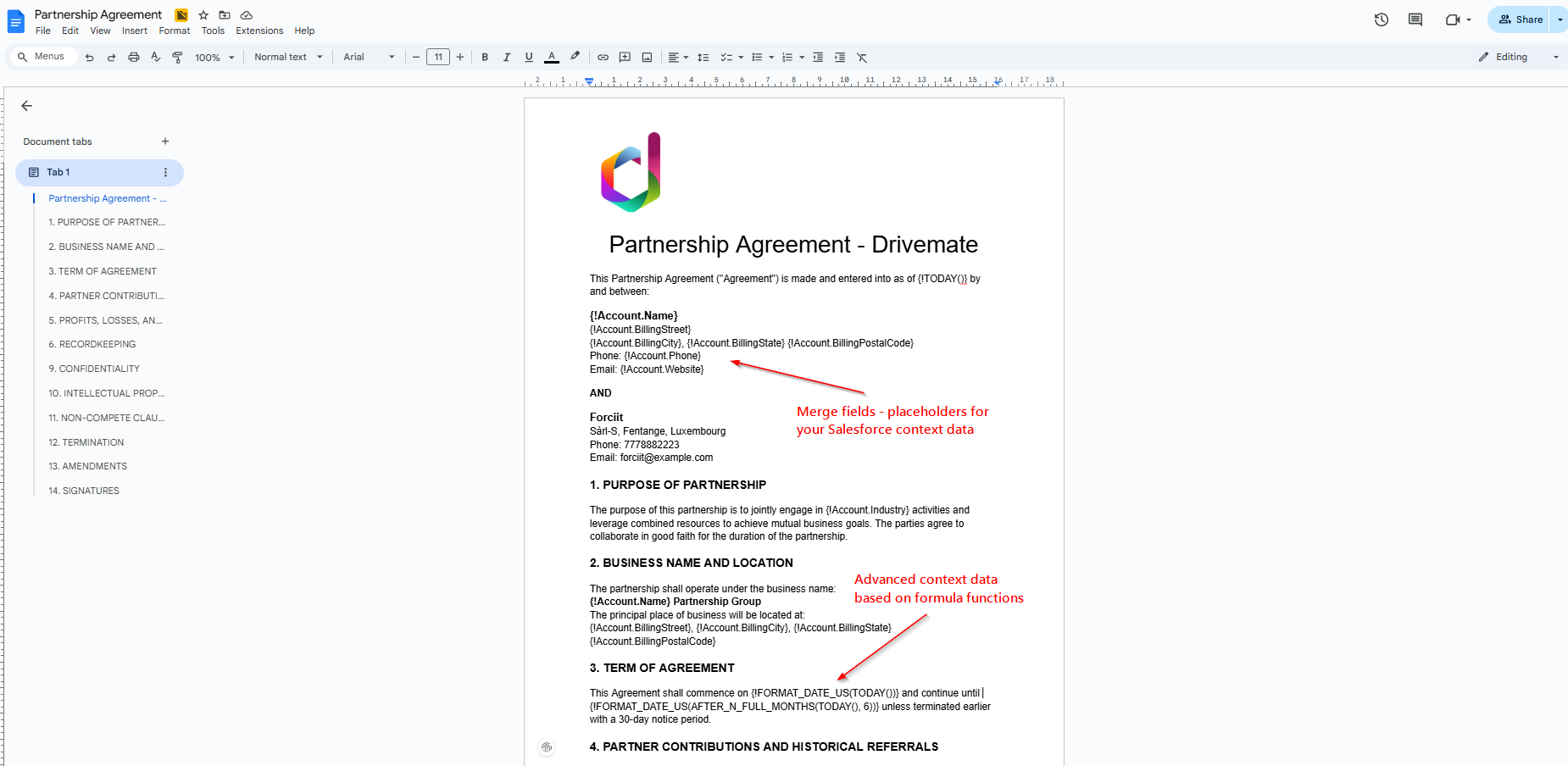
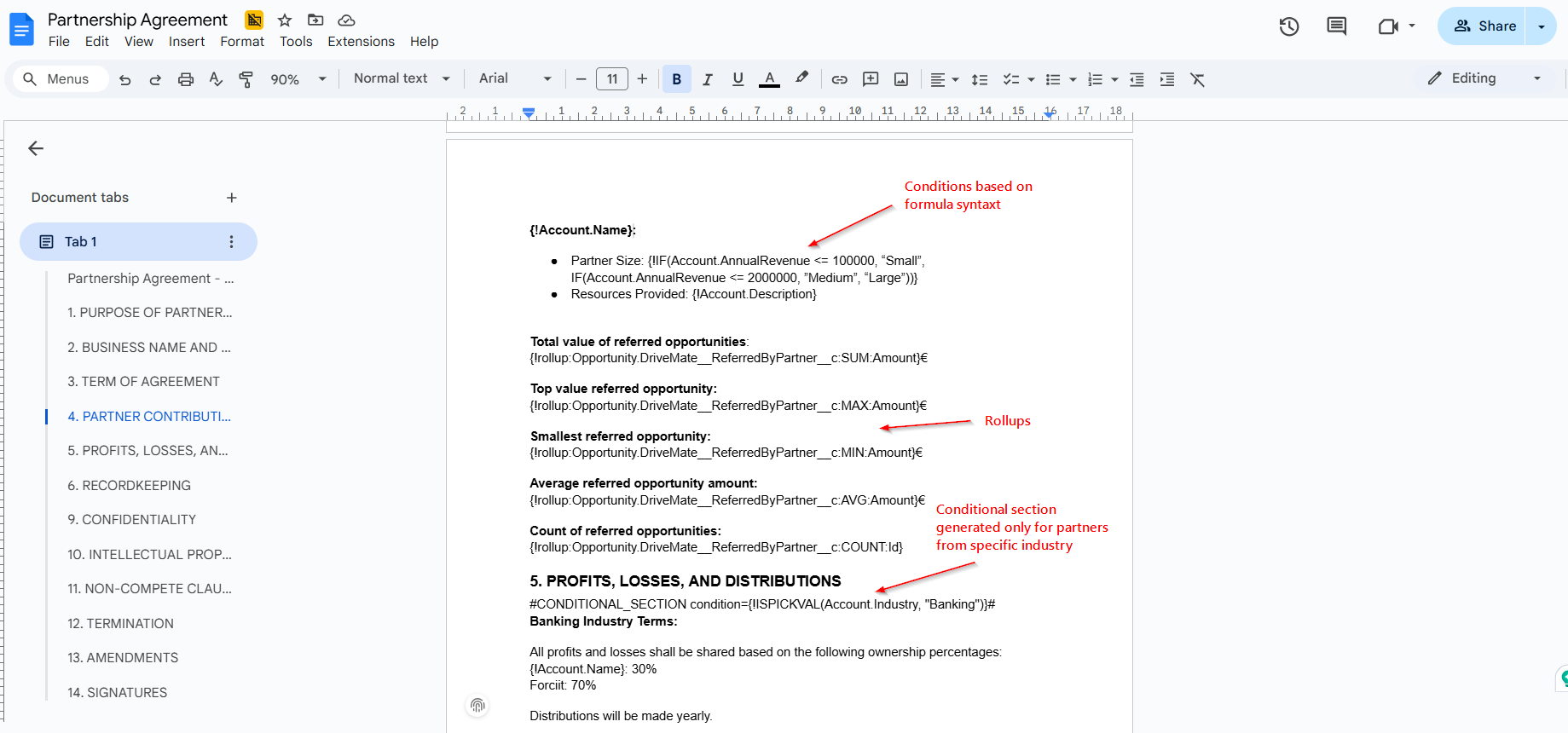
The DriveMate 3.0 release introduces the whole new module of the app - document generation. Now DriveMate allows you to generate documents based on the templates stored in Google Drive.
How does it work?
- First, you define a document template and save it as a Google Doc in your Google Drive. A document template is just your document with placeholders for context-specific data - such as a contract with no customer-specific information prepopulated - those information will be filled during the automatic document generation process.
- Next, you invoke DriveMate document generation from an appropriate place in your business process. Usually, this is a screen flow executed from the level of a record page (via a quick action) or your own trigger logic.
- Voilà, your document creation process is automated.
Required Manual Steps
If you upgrade from any DriveMate 2.X version, you need to follow a few post-installation steps to configure the new version properly.
-
Add Google Docs API to the enabled APIs in your Google Cloud Console.
- Login to your Google Cloud Console and select the DriveMate-related project configuration.
- Select APIs & Services › Library from the navigation menu and add search for Google Drive API. Click on the API and select Enable.
-
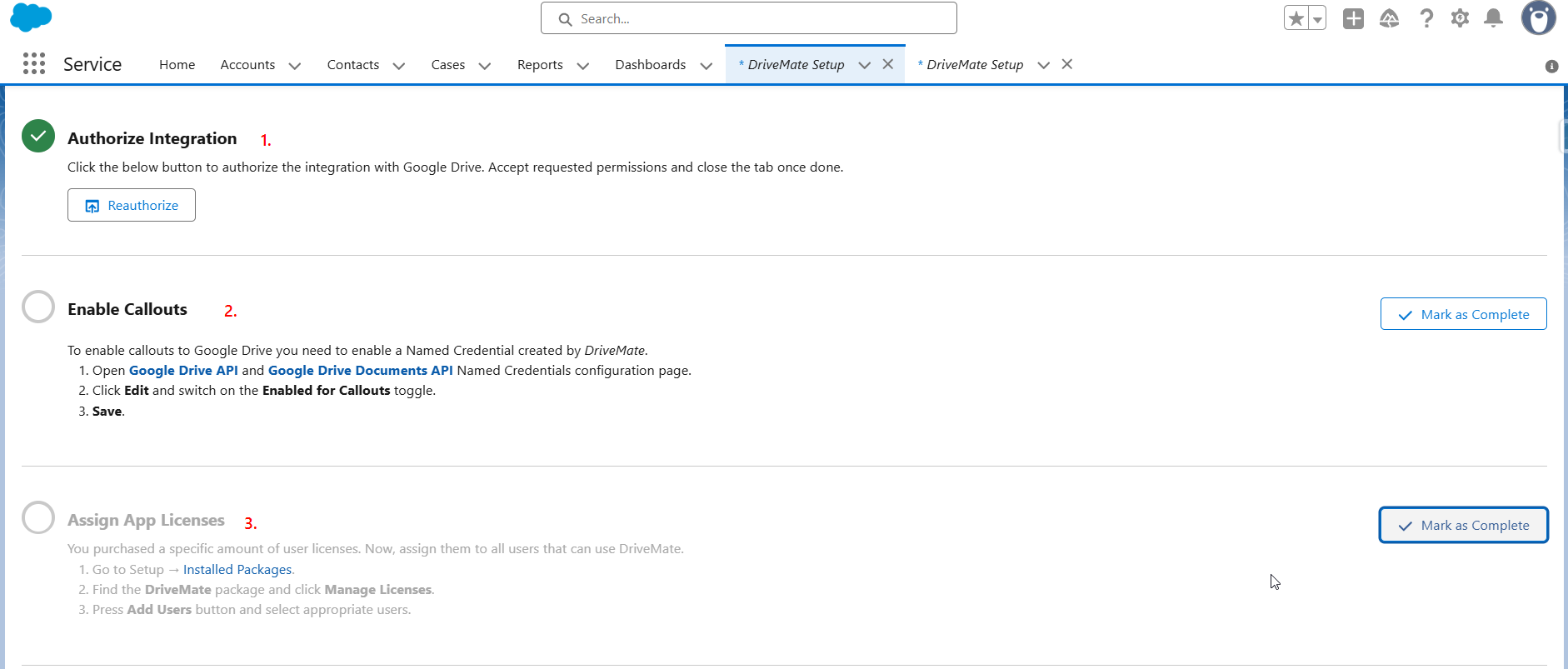
Navigate to the DriveMate Setup page and execute the below manual steps:
- Authorize Integration - You need to reauthorize the integration to allow DriveMate to access Google Documents API.
- Create Documents API Named Credential - Use the button under this step to create a named credential metadata used to access the Google Documents API.
- Enable Callouts - Follow the instructions to activate the named credential created above.