Document Generation in DriveMate
DriveMate allows you to generate documents based on the templates stored in Google Drive.
Imagine you need to generate an invoice or order summary based on the Order record stored in your Salesforce org. Or you want to create a contract document for your customer. Copying old documents and adding the customer-specific data every time you need to generate such document is troublesome and inefficient.
With the DriveMate document generation functionality, you can automate this.
How does it work?
- First, you define a document template and save it as a Google Doc in your Google Drive. A document template is just your document with placeholders for context-specific data - such as a contract with no customer-specific information prepopulated - those information will be filled during the automatic document generation process.
- Next, you invoke DriveMate document generation from an appropriate place in your business process. Usually, this is a screen flow executed from the level of a record page (via a quick action) or your own trigger logic.
- Voilà, your document creation process is automated.
Step by step example
Let's walk through an example of preparing automated Partnership Agreement document generation.
Our main business requirements are:
- It should be created from the level of a partner account in Salesforce.
- It should contain account-related data (such as address, name, contact person, etc.—whatever we need for the agreement and can source from the Salesforce org).
- The generation should happen automatically after clicking a button on the account record page.
-
- The final output document must be available in the Google Drive folder related to the given partner account (we should be able to access it from the record page).
Creating a document template
The first step is to create the document template. It will be a Google Doc containing the entire agreement body together with placeholders for the Salesforce context data.
Context data
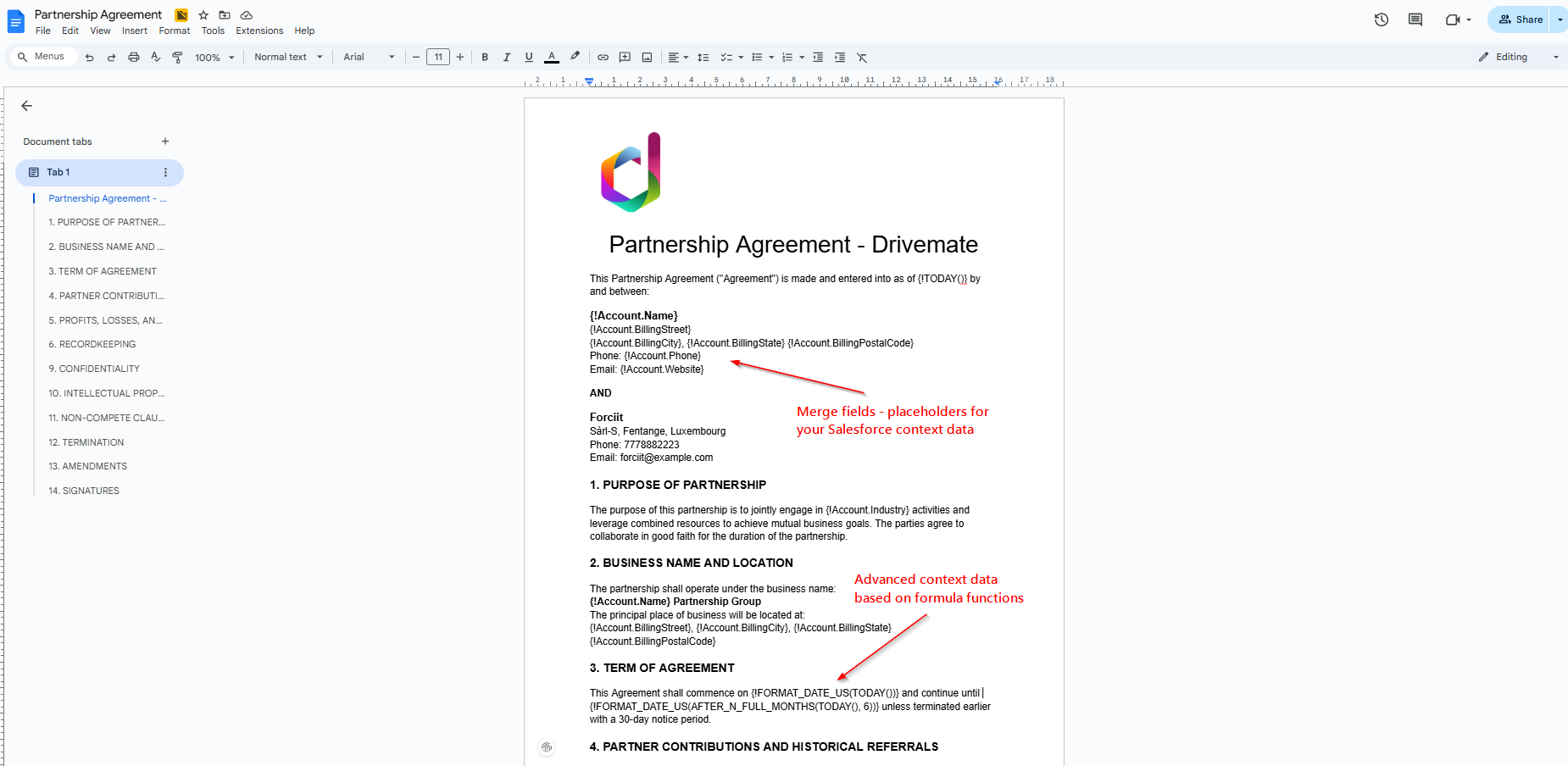
The most basic (and most frequently used) way of putting the context data placeholders into the document template is using merge fields. They are fragments enclosed with "{!" and "}" indicating Salesforce record-based information that will be replaced during the document generation.
Merge fields must be defined in a Salesforce formula syntax. Here are a few examples:
{!Account.Name}- represents a Salesforce account name.{!TODAY()}- today's date (very useful to indicate the date of generation on the document).{!Account.Owner.FirstName + " " + Account.Owner.LastName}- account owner name.{!IF(Account.AnnualRevenue <= 100000, “Small”, IF(Account.AnnualRevenue <= 2000000, ”Medium”, “Large”))}- conditional formula to classify the partner's size.
There are many other, more advanced ways of displaying the context data inside the generated document. You can read about them in the dedicated sections of this documentation:
- Formula functions - allow to define and reuse complex formulas accross multiple templates.
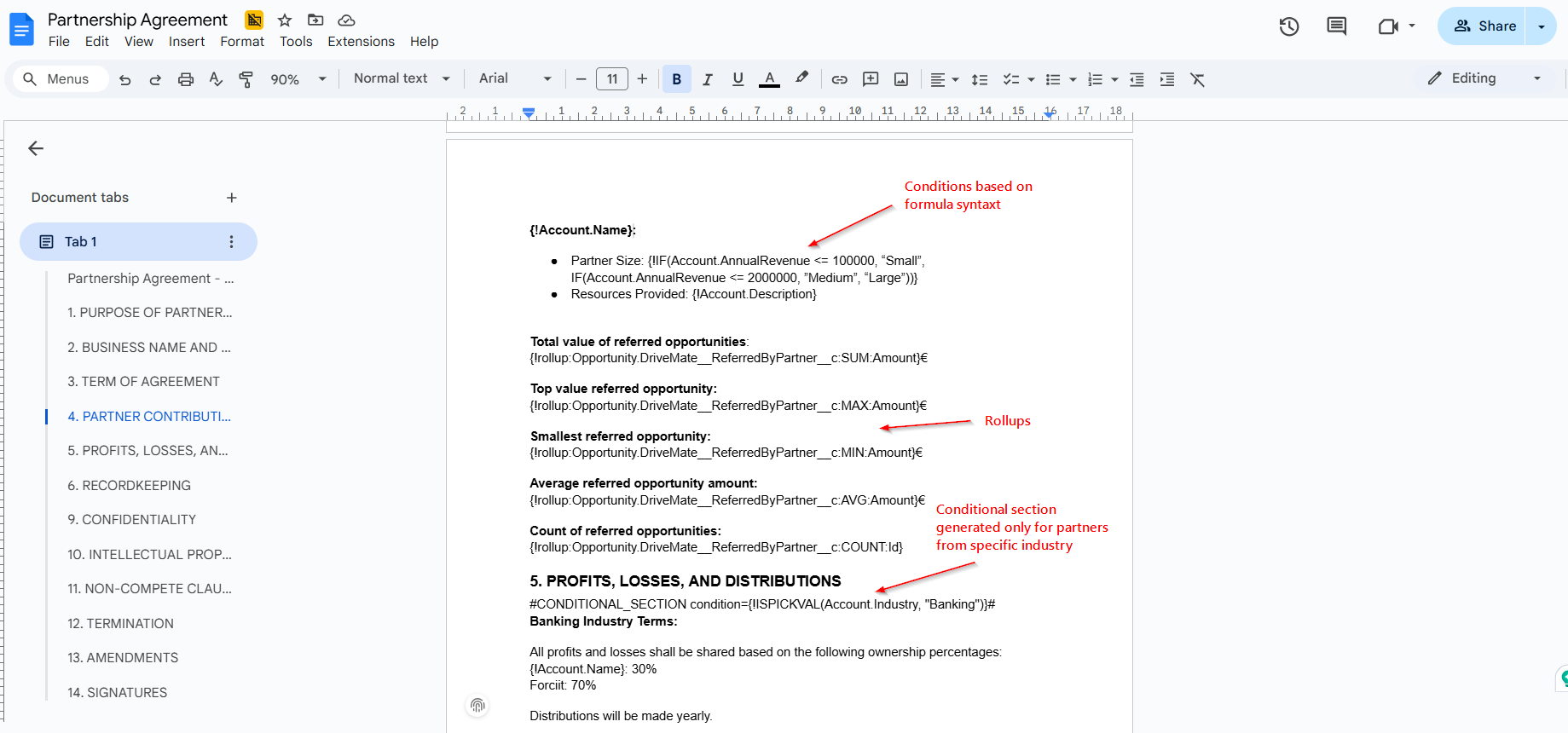
- Rollups - used to summarize related records data (e.g. you can display the number of opportunities referred by the partner in the past. Or the number of open cases for a customer).
- Record tables - enable you to display tables based on records related to the main context record - such as a table of all opportunities for a given account.
- Conditional sections - allow to display sections of the document conditionally, based on the record-based conditions.
Partnership Agreement template
Here's how our template could look like:
Creating a Screen Flow with document generation
The easiest way of using the DriveMate document generation logic is creating a screen flow which invokes the Generate Document From Template apex action. Next, you use this screen flow inside a quick action or directly on any page.
Let's see how such a flow can look like:
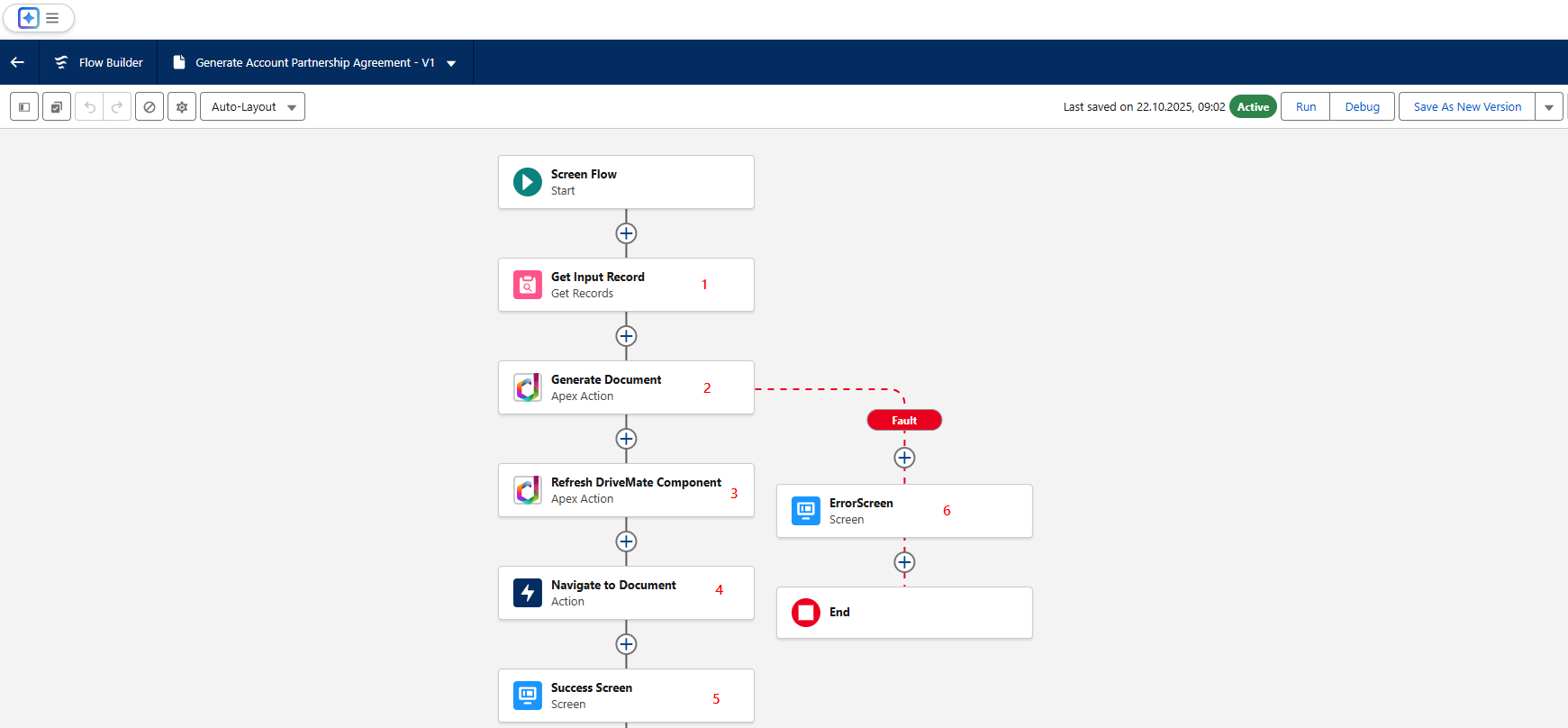
The elements you'd typically place there are:
-
Context record retrieval - in this case, this is an account. We're getting its details here to receive two things:
- Google Drive Folder ID related to this account - that way we can save the generated file there.
- Account Name - to properly name the output file.
-
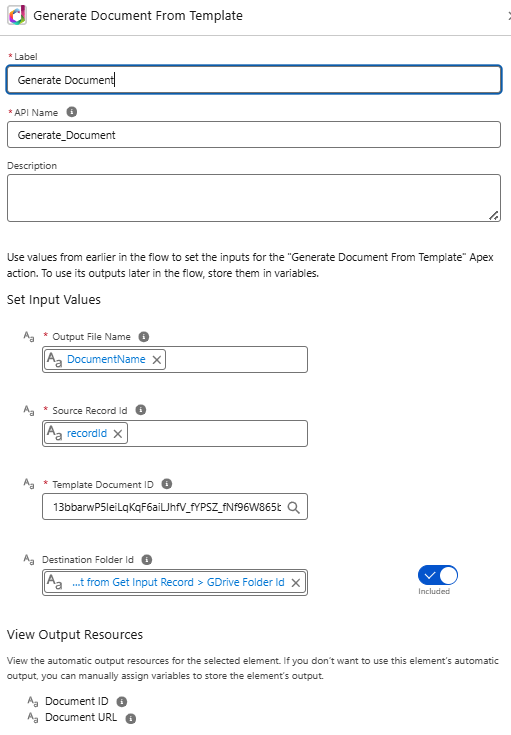
Generate Document From Template apex action - this is the most important one. Here's where you run the document generation logic. Let's look more closely at the parameters you need to pass there:
-
Output File Name - Name of the output document. You can use a flow formula to include record data in the name.
-
Source Record ID - ID of the context record used to generate the document. For your record-aware flow, you should create a flow variable named recordId and make it available for input - this variable will contain the context record ID (e.g., account ID if the flow is initiated from the account record page).
-
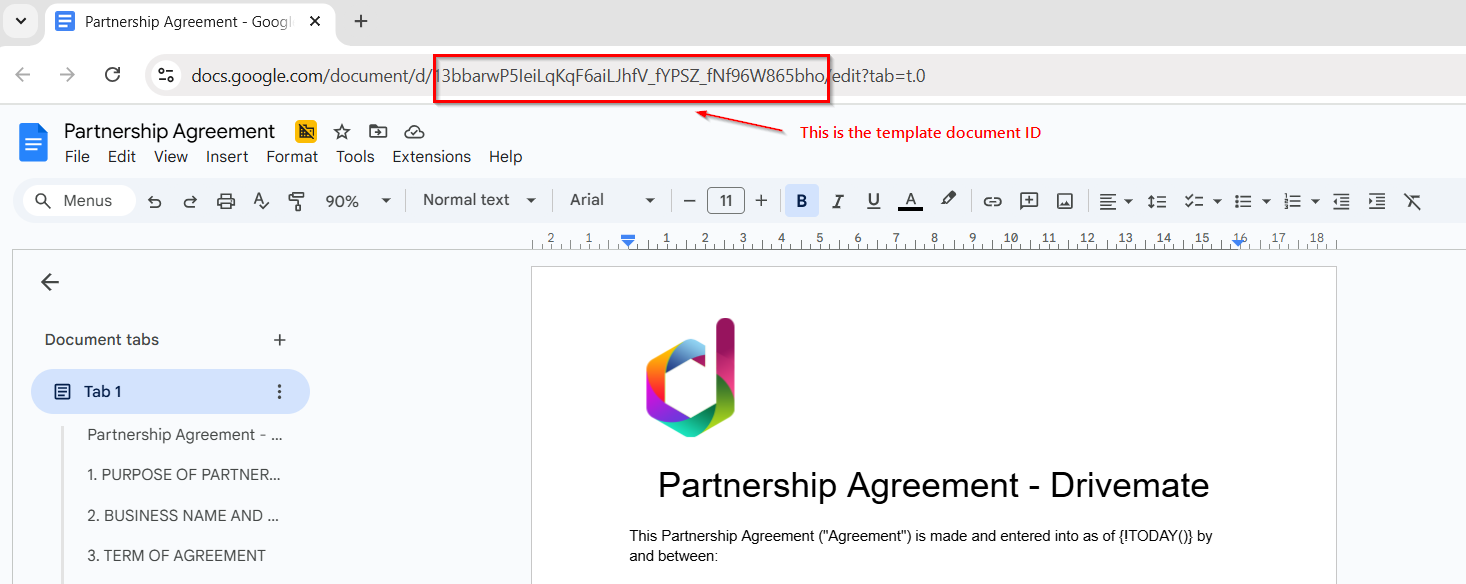
Template Document ID - ID of your Google Doc template (you can take it from the URL when opening the template in the browser).
-
Destination Folder Id - ID of the Google Drive folder, where the generated document will be saved. If you leave it empty, the document will be saved in the root of your Google Drive. In our example, we take it from the context account, so that the generated document is together with all the other Google Drive documents for this account.
-
-
Refresh DriveMate Component action - You use this action to ensure that the DriveMate component on the record page is automatically refreshed after the document is generated. That way, the document is available immediately (without a page refresh) regardless of where you place your flow. You only pass one parameter there - the context record

-
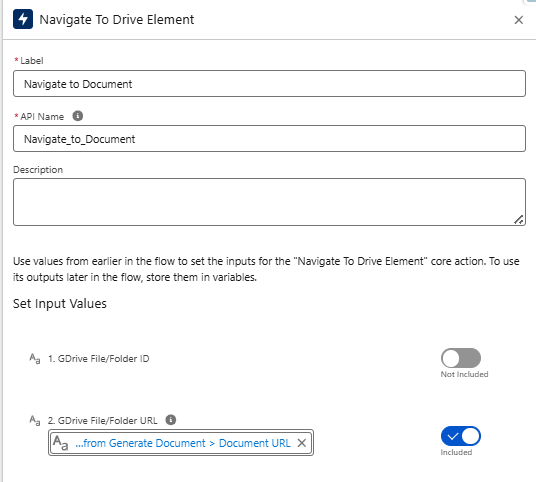
Navigate To Drive Element action - Opens an element (e.g. document, folder, file) in Google Drive. Since the Generate Document From Template action returns the newly generated document URL, you can pass it directly here.
-
Success screen - Just to notify the user that everything went allright.
-
Error handling screen - If you made some mistakes during the template preparation, the integration with GDrive is not authorized, or any other unexpected scenario happens, the document generation logic throws an exception. You can have a dedicated screen informing the user on what is going on. Use the
Flow.FaultMessagevariable to display the error details.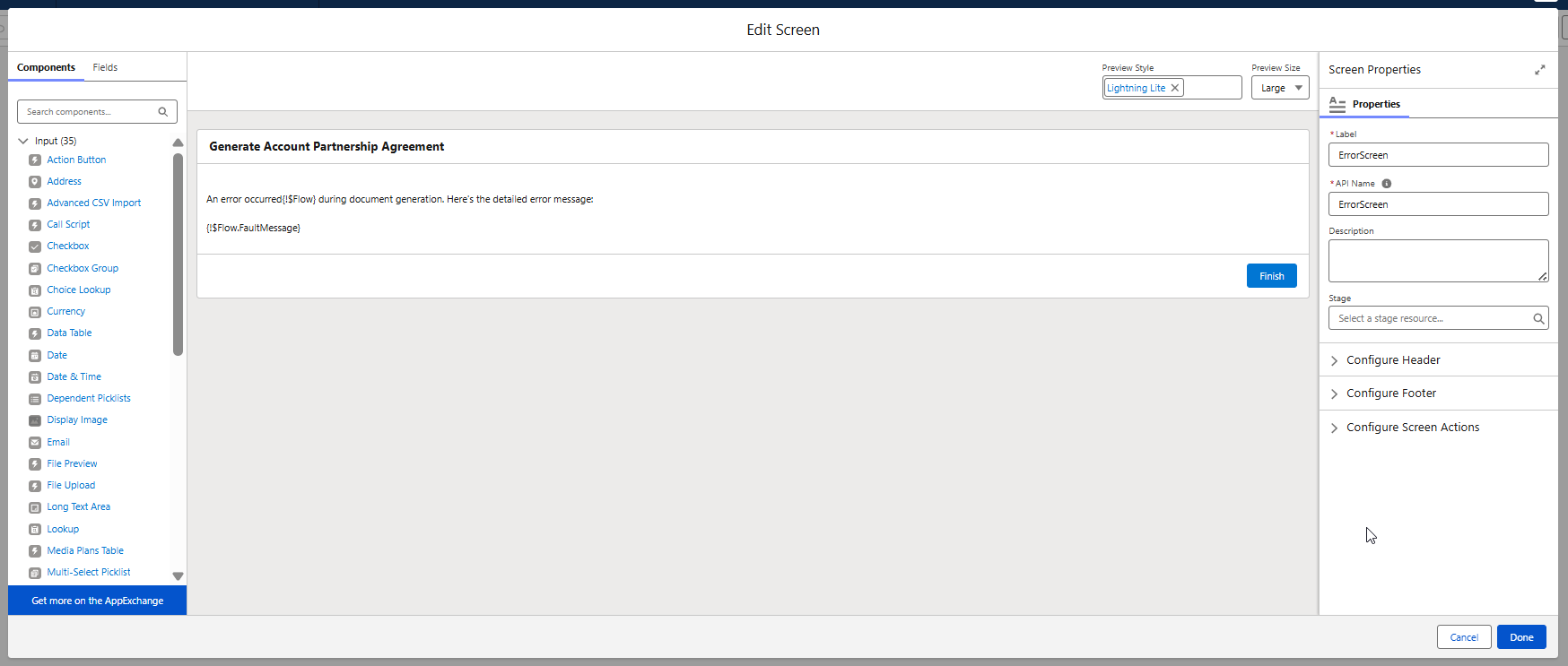
Creating a Quick Action
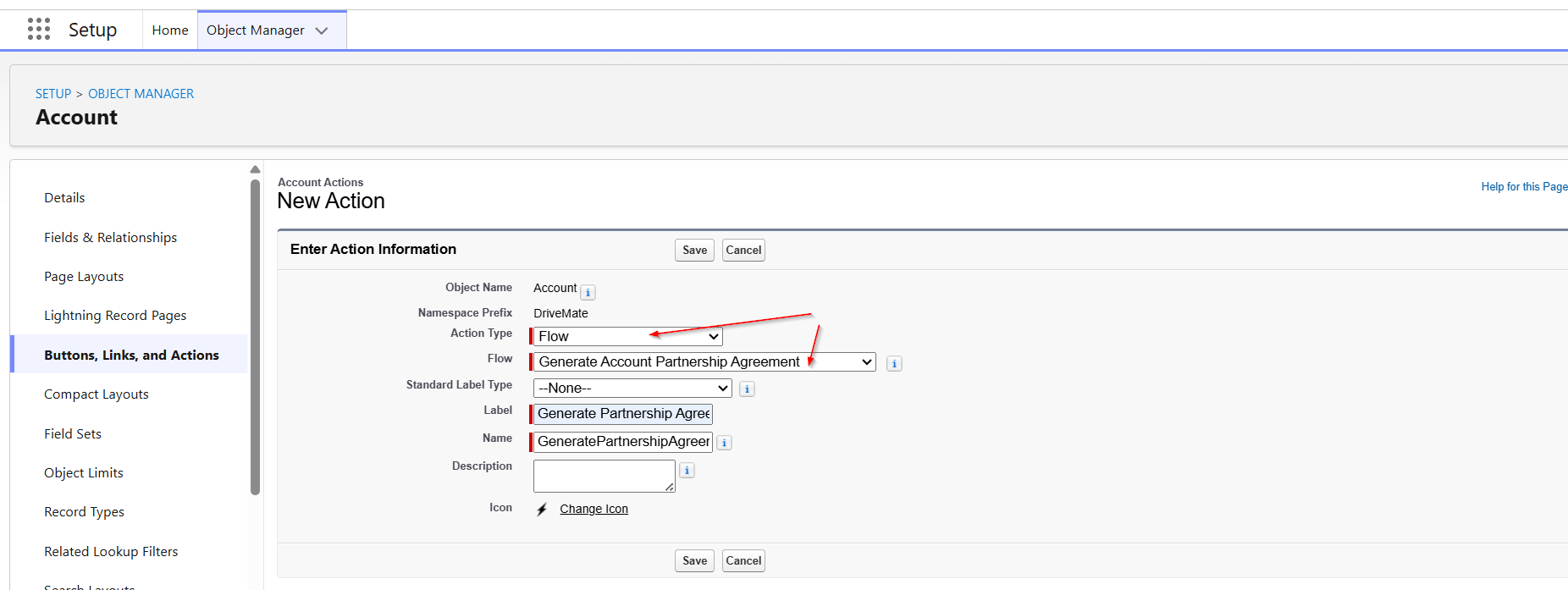
Now we can create a quick action that will launch the flow from the level of an account record page. To do that, go to the Object Manager > <YourObject> > Buttons, Links, and Actions and click New Action.
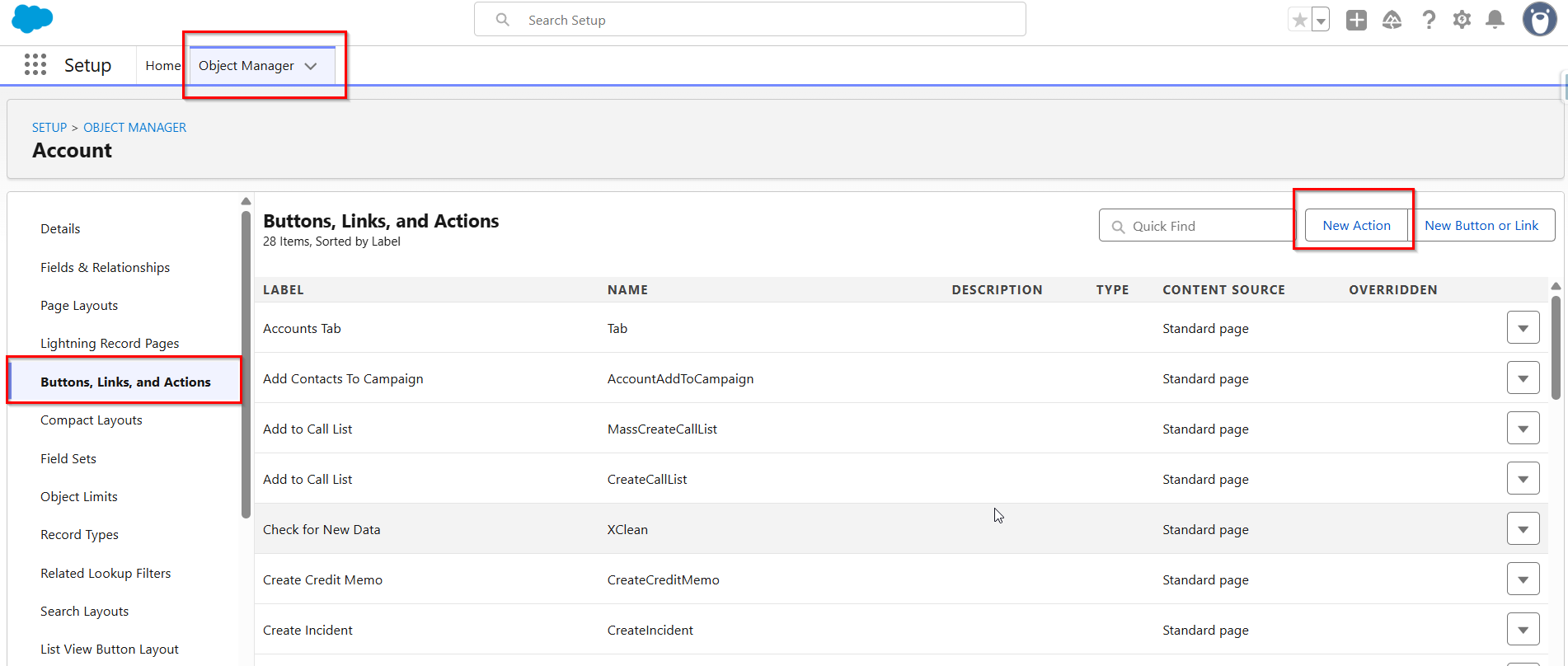
Be sure to choose the Flow Action Type and select the flow you created in the previous step.
Adding a Quick Action to the record page
The last step is to add the newly created action to the appropriate record page - in our example, the account record page.
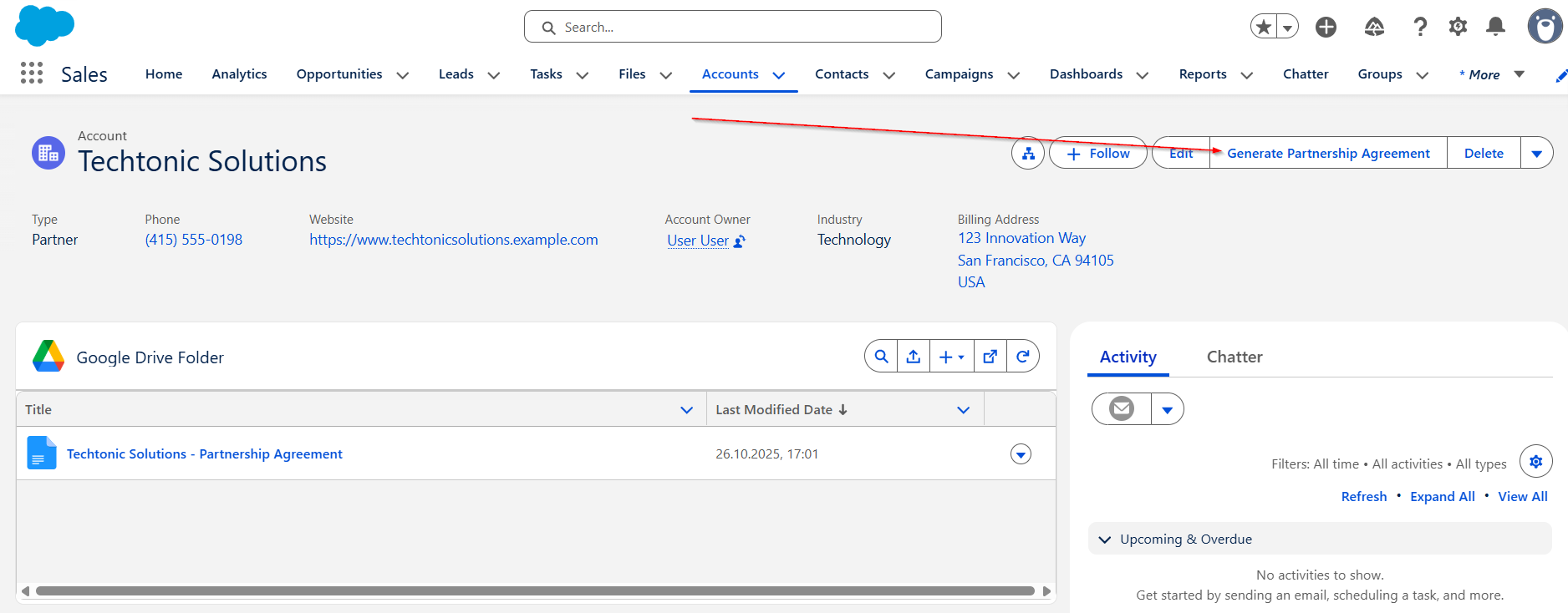
If you did everything correctly, you should see the new, fully functional, document generation action on the record page level.
Other ways of invoking document generation logic
The above example was based on a screen flow and quick action combination, but you are free to choose any automation option available in Salesforce. Here are some of the other possible options:
- Quick action, LWC with your custom UI, apex calling the Generate Document From Template apex action.
- LWC embedded on a page, your custom apex code calling the Generate Document From Template action.
- Record-triggered flow calling the apex action.
- Standalone screen flow calling the apex action.
- Aura Component with your custom UI, apex calling the Generate Document From Template action.
- Visualforce page, apex calling the Generate Document From Template action.
As you can see, there are lots of ways and all of them have one in common - you need to execute the document generation apex action.