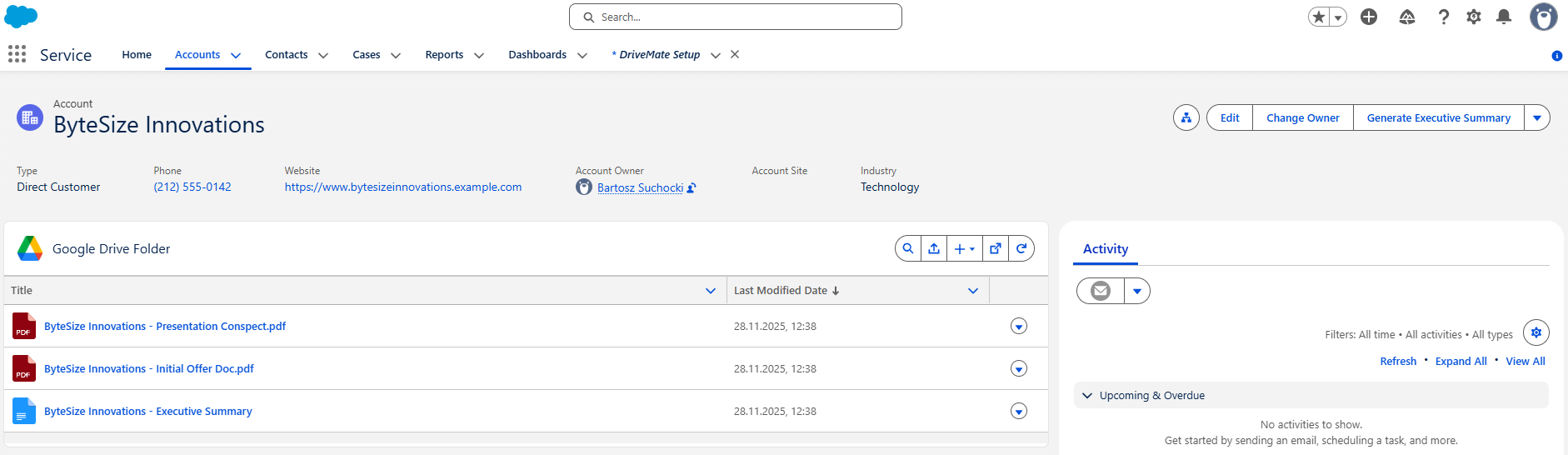
Record-level File Management
You can manage your Google Drive files from a Salesforce record. A typical use case is when you store customer-related files in Google Drive folders (separately for each customer). This can apply to any Salesforce record.
Prerequisites
Make sure you have followed the setup instructions to configure the app.
For this functionality, you specifically need to create a custom field on the object to store the Google Drive folder ID - for example, to manage Google Drive files from the Account, create a custom field (e.g., GDriveFolderID__c) on the Account object.
This lets you associate the Google Drive folder with a specific record.
Tip: You don't need to copy the folder ID to each record manually. You can setup an automatic folder creation.
Next, you will add a DriveMate component to your record page.
Add the "DriveMate - Google Drive Folder" component to your record pages
This is a key step - this component allows you to manage Google Drive files from the level of a Salesforce record.
- Open in edit mode the record page where you want to access your Google Drive files.
- Drag and drop the
DriveMate - Google Drive Foldercomponent to the desired location. - Click on the component to display the configuration properties on the right panel. In the Folder field name input, put the API Name of the custom field you created to store the Google Drive Folder ID.
- Adjust the component properties to your needs and save your record page changes.
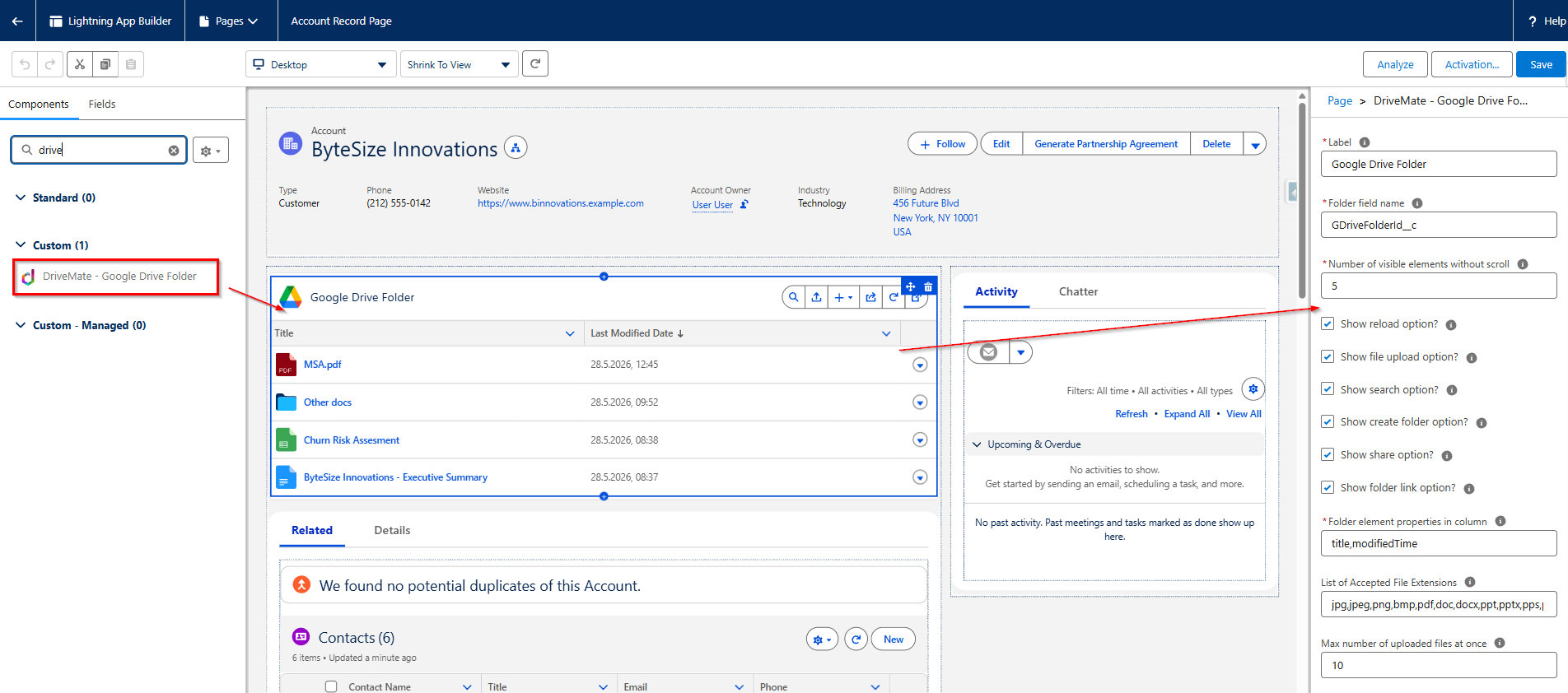
Adjust Google Drive Folder component properties
The component has several properties to customize how users in your Salesforce org can interact with Google Drive.
- Folder field name - Allows you to specify the custom field on the record that will store the Google Drive Folder ID.
- Number of visible elements without scroll - Allows you to specify the number of files and folders visible at once on the component. If more elements are loaded, a scrollbar is displayed.
- Show reload option? - Determines if the reload option is displayed on the component.
- Show file upload option? - Determines if the file upload option is displayed on the component.
- Show search option? - Determines if the search option is displayed on the component.
- Show create folder option? - Determines if the create folder option is displayed on the component.
- Show folder link option? - Determines if the option to open the folder in Google Drive directly from the component is displayed.
- Folder element properties in column - Use it to specify the properties of the folder elements that will be displayed in the table. Separate them with commas. Valid values are:
title,modifiedTime,size,createdTime,fileExtension,mimeType. - List of accepted file extensions - Comma-separated list of file extensions that will be accepted. e.g.
png,pdf. - Max number of uploaded files at once - Specifies the maximum number of files that can be uploaded at once.
Using the Google Drive Folder component
Once the component is added to your record page, you will be able to see all the files and folders added under the folder associated with the record. Now, anytime you add a new file to this folder, it will be automatically synchronized with Salesforce.

Uploading files to Google Drive
Use the upload button to add new files to the folder. You can also drag and drop files from your computer to the component. The files will be synced to Google Drive automatically.


Creating a new folder
Use the New > Folder option to create a new folder.

Creating Google Workspace files
You can create new Google Workspace files (Documents, Spreadsheets, Slides, Forms) directly from the component. Use the New button and select the desired file type.

Searching for files and folders
Use the search button to start searching for files and folders.


Opening the folder in Google Drive
Use the Open in Google Drive button to open the folder in Google Drive directly.

Opening an individual file in Google Drive
Use the Open in Google Drive button to open the individual file in Google Drive directly.

Trashing files
Move files to the trash by clicking the Move to Trash button.

Downloading files
Download files by clicking the Download button.

Reloading the folder contents
If you added a new file directly in Google Drive, you can reload the folder contents in Salesforce using the Reload button.