File Management on Experience Cloud
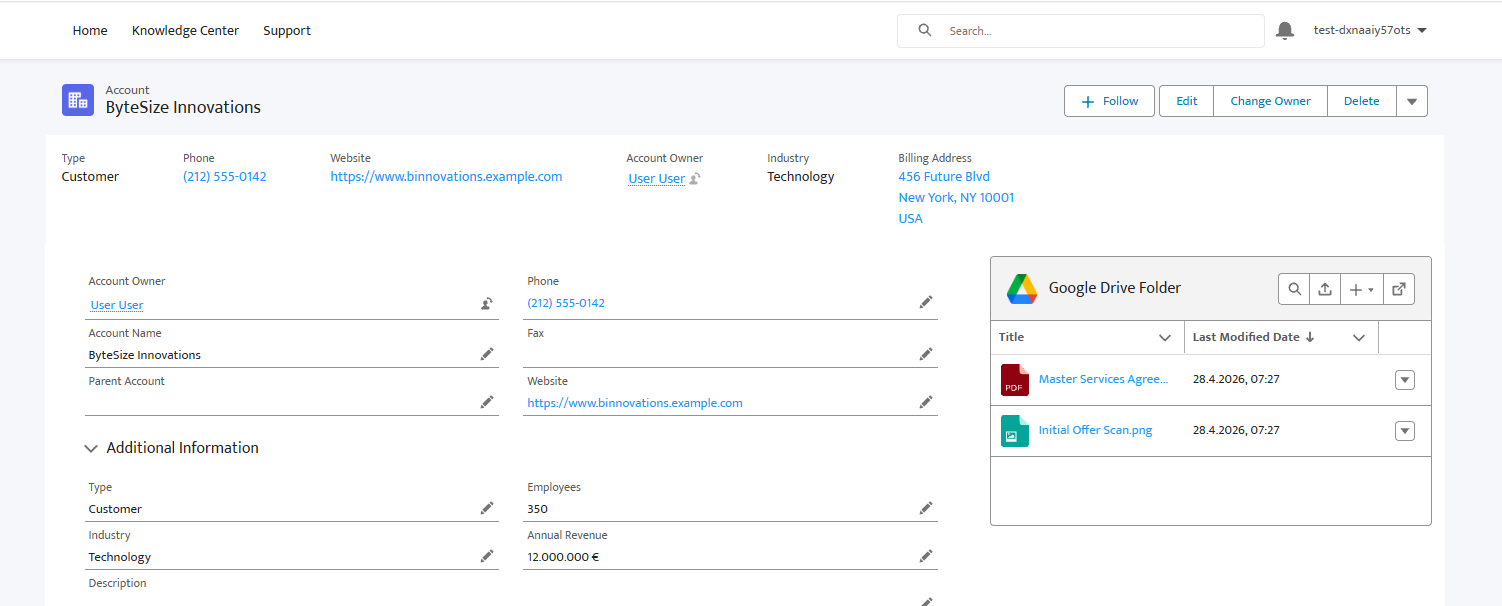
The DriveMate - Google Drive Folder component works on Experience Cloud sites, enabling external users (customers, partners, vendors) to browse, upload, and download Google Drive files without leaving your portal. Common examples include:
- Client project portal - A consulting firm shares deliverables (SOWs, designs, status reports) with clients. Each client logs in and sees only their project's folder.
- Vendor document exchange - A procurement team collects compliance documents, invoices, and certifications from vendors, all tied to the vendor's Account record.
- Partner deal room - Channel partners access co-branded collateral, pricing sheets, and proposal templates for the deals they're working.
- Customer onboarding - After a deal closes, the customer reviews onboarding documents (contracts, SLAs, implementation guides) and uploads signed agreements or configuration questionnaires.
- Support case attachments - Customers attach screenshots and log files to their support cases. The support team shares diagnostic results back through the same Case-linked folder.
Prerequisites
- Complete the general setup instructions.
- Create a custom field on the relevant object to store the Google Drive folder ID, as described in Record-level File Management - Prerequisites.
- Assign a DriveMate license to each Experience Cloud user who needs to see the component.
- Assign the DriveMate User Access permission set group to those users.
Tip: Both the license and permission set group assignment can be automated - for example, via a Flow triggered on user creation or community membership.
Add the component to an Experience Cloud page
- Open your Experience Cloud site in Experience Builder.
- Navigate to the page where you want the component to appear (e.g., a record detail page, a custom page, or a landing page).
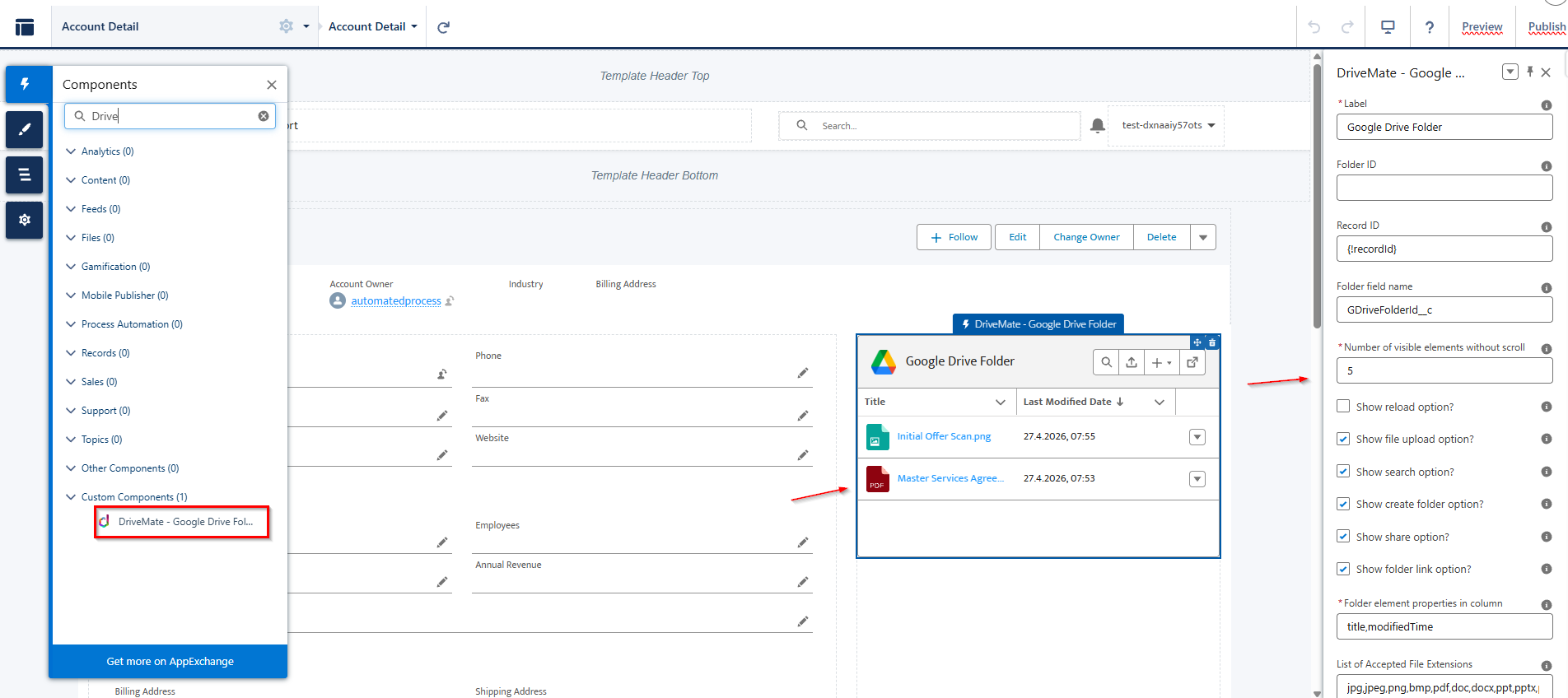
- Drag the DriveMate - Google Drive Folder component onto the page.
- Choose one of the configuration modes:
- Record-linked mode: set Record ID and Folder field name.
- On record detail pages, you can use the page's built-in record merge field.
- On other pages, pass record ID through URL parameters or another context source.
- Fixed-folder mode: set Folder ID to display one specific shared folder.
- Record-linked mode: set Record ID and Folder field name.
- Adjust the remaining properties to your needs and publish the site.
Component properties and usage
For full placement options, mode details, property reference, and feature overview, see Google Drive Folder Component.