Record Tables
You can create tables displaying data based on the records related to the main template record. Example use cases are:
- List of opportunities referred by a partner, sorted by the Amount (partner agreement document)
- List of order products for a given order with their prices and a total price (order summary document/invoice)
- List of main representatives of a company containing their contact information (customer summary document)
- ... any other related list-based table.
Create Related Records Table - Order Summary Example
Imagine a use case where you need to generate an order summary document for your customer. It should contain:
- Your company information
- Customer information (including shipping address and order-specific details)
- List of the products (with their quantities and prices) that the customer purchased
- Total value of the order.
Points #1, #2, and #4 are easy - you can use merge fields for that. For #3, you should use a Related Records Table.
Decide on the related list details
Firstly, choose the related record list that you will use as the basis for the table. In our example, this will be Order.OrderItems (always use the API Name).
Then, decide if you need any additional parameters, such as a filtering condition, ordering, or a limit on the number of returned records.
The table below shows the overview of the parameters you can use:
| Parameter Name | Required/Optional | Purpose |
|---|---|---|
| source | Required | This is your related list API Name in a format SourceObjectApiName.RelatedListApiName, e.g. "Order.OrderItems". |
| filter | Optional | If you want to narrow down the return results, use filter in a form of a SOQL condition (FieldName <conditionOperator> Value, e.g. "Quantity > 100". |
| orderBy | Optional | Specify the field that should be used for sorting the records. |
| orderDirection | Optional | Controls the order direction - can be one of the following values: ASC, DESC. |
| limit | Optional | If you want to display only part of the records, use limit - pass a numeric value larger than 0. |
Create table tags in the document template
Once you decide on the parameters, you need to specify them in your document template in the following format:
#RECORDS_TABLE source=”ObjectApiName.RelatedListApiName” filter=”SOQLFilterRepresentation” orderBy=”FieldName” orderDirection=”ASC/DESC” #

<here's where your table will be>

#END_RECORDS_TABLE#
For example, the tags below will represent a table returning the top 20 ordered products with quantities larger than 100, sorted by the quantity:
#RECORDS_TABLE source=”Order.OrderItems” filter=”Quantity > 100” orderBy=”Quantity” orderDirection=”DESC” limit=”20”  #

#END_RECORDS_TABLE#
And here's a more realistic example that returns all order products sorted by the product name:
#RECORDS_TABLE source=”Order.OrderItems” orderBy=”Product2.Name” orderDirection=”ASC”#

#END_RECORDS_TABLE#
Define the table structure
The next step is to create a table in your Google Doc document template, just as you would if you were creating it manually.
It should include:
- One row with table headers.
- One template row that specifies all the information you need to extract from individual order products - each cell can be either: 2.1. A formula referencing a RecordRow keyword - treat the RecordRow as the individual record from the related list. 2.2. Or a static value - if you want it to be repeated in each row in a given column.
Here's how this table could look for our Order Summary example:
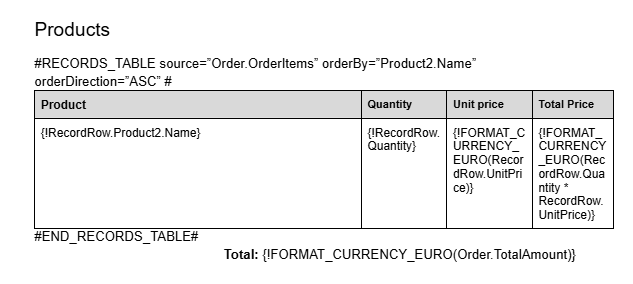
Notice that you can use the same formula-based syntax as for the merge fields. In that case, you base your formulas on the RecordRow record.
Add formatting
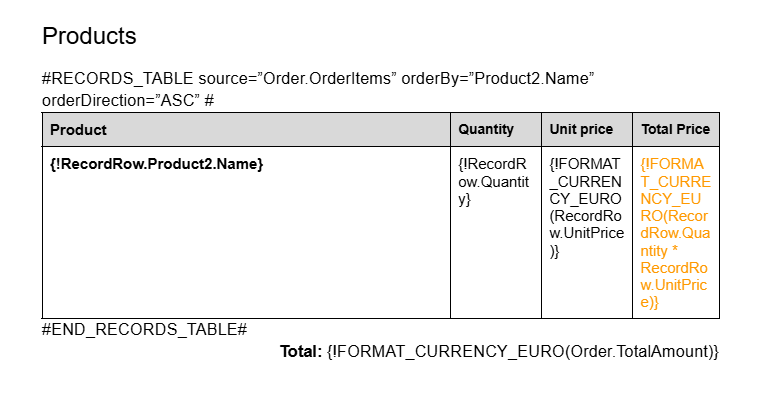
Whatever formatting you add to the template row, it will be copied over to the individual per-record rows. Let's say, we'd like to have the product name in bold and the total product price in some distinctive color.
Here's how the table would look in the template document:
Generate
Now use your template in a flow or any other logic.
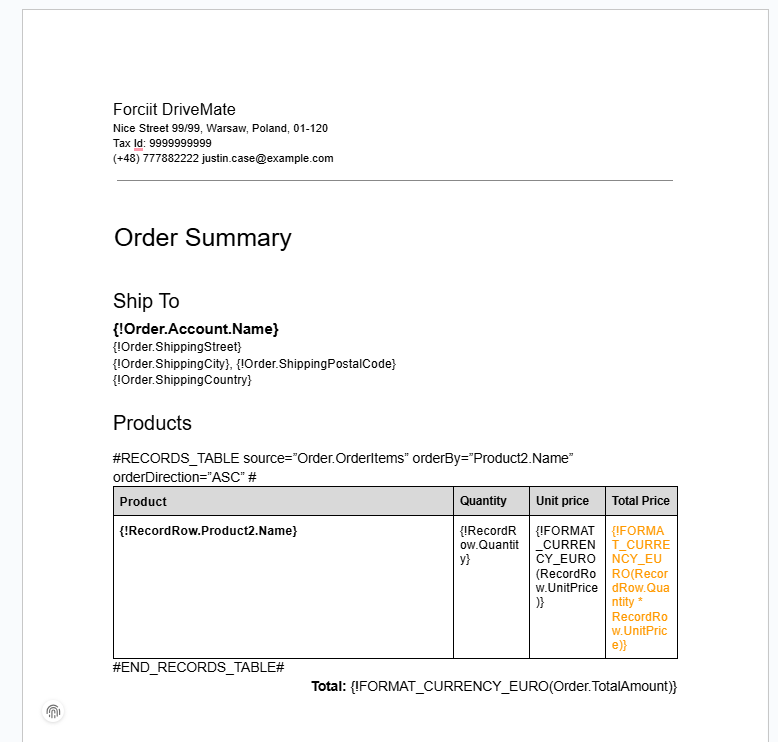
Our final template might look like this:
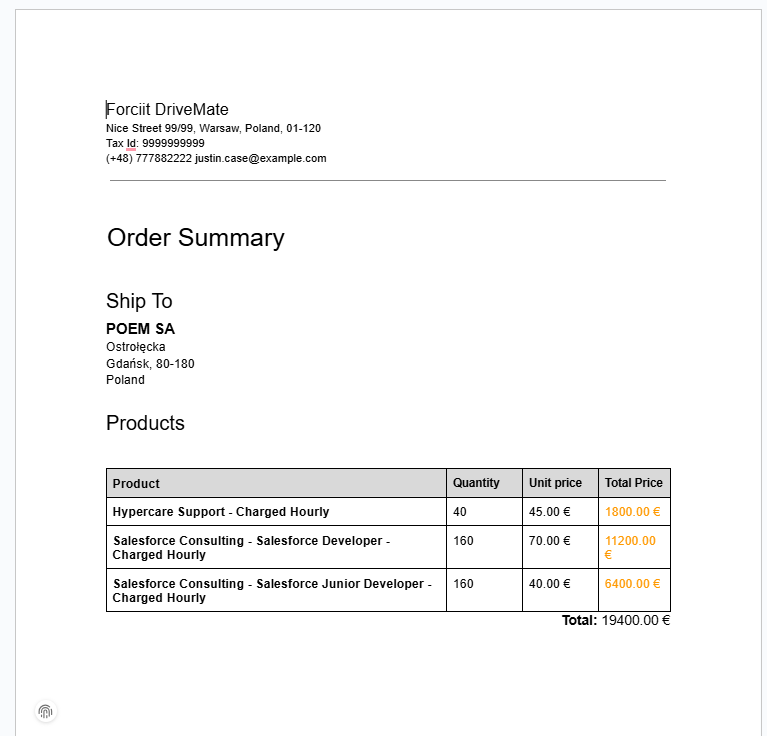
The generated document will look like that:
Current constraints and limitations
-
Max number of record tables per document template - 10.
-
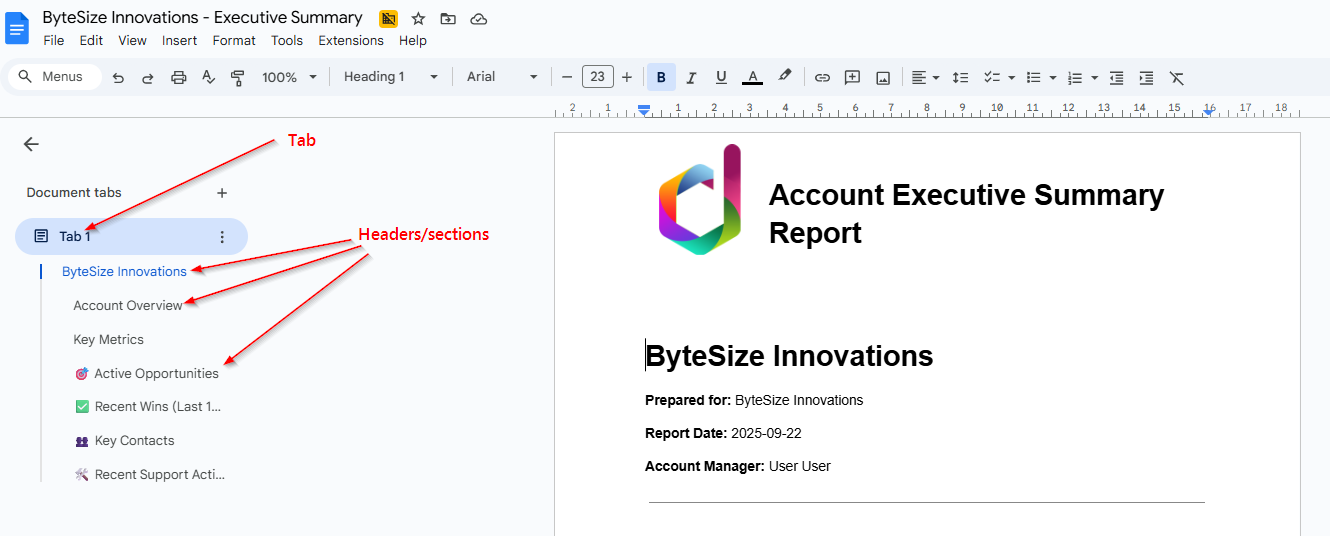
Document templates with multiple tabs are not supported. Note: Do not confuse a tab with headers/sections. Those are supported:
-
Each cell content must be exactly one line (no line-breaks) and cannot be a link.