Automatic Folder Assignment
To link your Google Drive folder to a Salesforce record, you need to create a custom field on the SObject level to store the folder ID. However, you don't need to manually populate it on each record. You can automate it using a record-triggered flow or Apex.
Create a Folder Every Time a Record Is Created - Flow
-
Go to Setup > Flows and select New Flow.
-
Select Record-Triggered Flow.
-
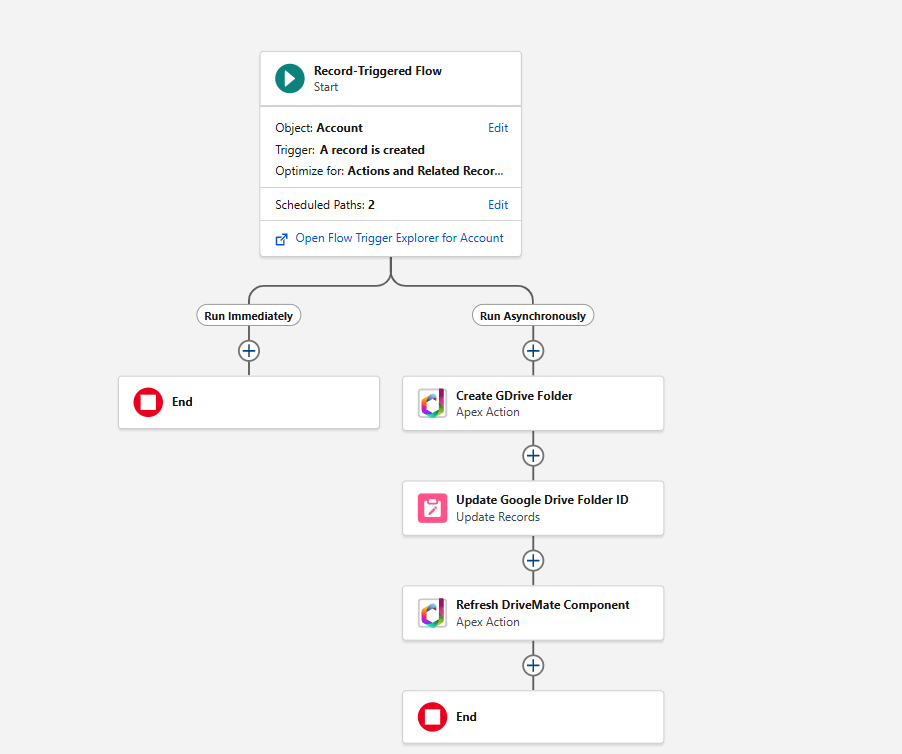
Configure the Start element according to your needs. Select your object and, optionally, entry conditions. Be sure to choose the Actions and Related Records optimization type and enable Run Asynchronously. The image below shows a sample entry element configuration for a flow that creates a new Google Drive folder for each newly created account:

-
Create a Run Asynchronously path. You will add all elements there (this is because the flow will invoke Google Drive API - this must be done asynchronously in record-triggered flows).
-
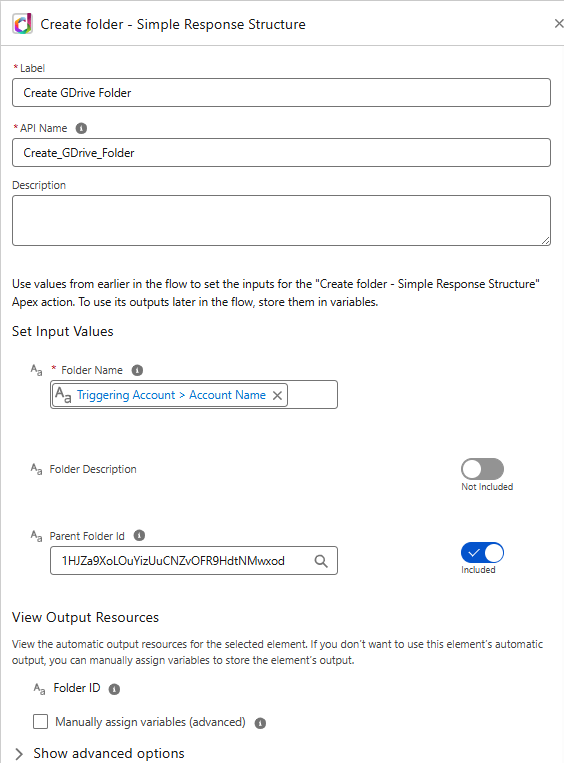
Add the Create folder - Simple Response Structure invocable action element. Provide the below parameters:
- Folder Name: specify the name of the folder to create. You can use a source record name or a formula to generate the folder name based on the other record fields.
- Parent Folder Id: ID of the parent folder in Google Drive where the new subfolder will be created. If not specified it will be created in the root of Google Drive. To check the ID of a folder, open it in Google Drive - the ID is the last part of the URL after "/folders/".

- Folder Description: an optional description of the newly created folder.
Here's a sample configuration for the invocable action element:
-
Add an Update Records element to update the source record with the newly created folder ID. Update the value of your custom field with the Folder ID output from the invocable action element.

-
Add the Refresh DriveMate Component invocable action element to refresh the
DriveMate - Google Drive Foldercomponent on the record page so you'll see the correct folder immediately after it's created. Use the context record ID as the Related Record ID parameter.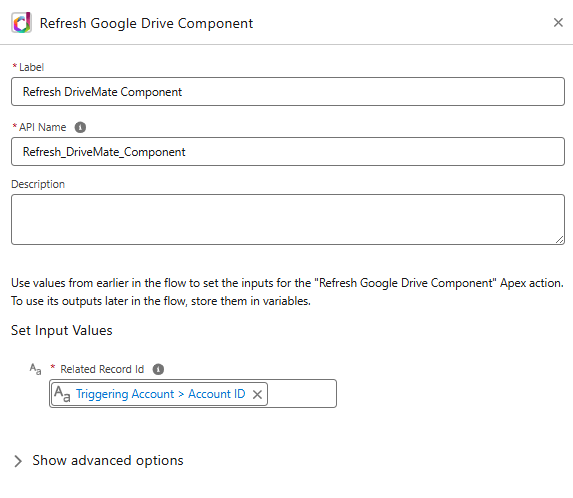
Here's the full configuration of a flow that auto-creates a Google Drive folder for each newly created account: