Formula Functions
You can define reusable Salesforce formulas used across different document templates. Example use cases are custom date/number/currency formatting, dynamic date/number calculations, and any operation supported by native Salesforce formula mechanism.
Example - calculating period end with full months shift
Imagine a use case when you want to display a date that represents the last day of a month, six months from now (or from some other date). It would be a bit complex formula, so you should use a formula function instead of placing a calculation directly in the document template.
Define a Formula Function custom metadata record
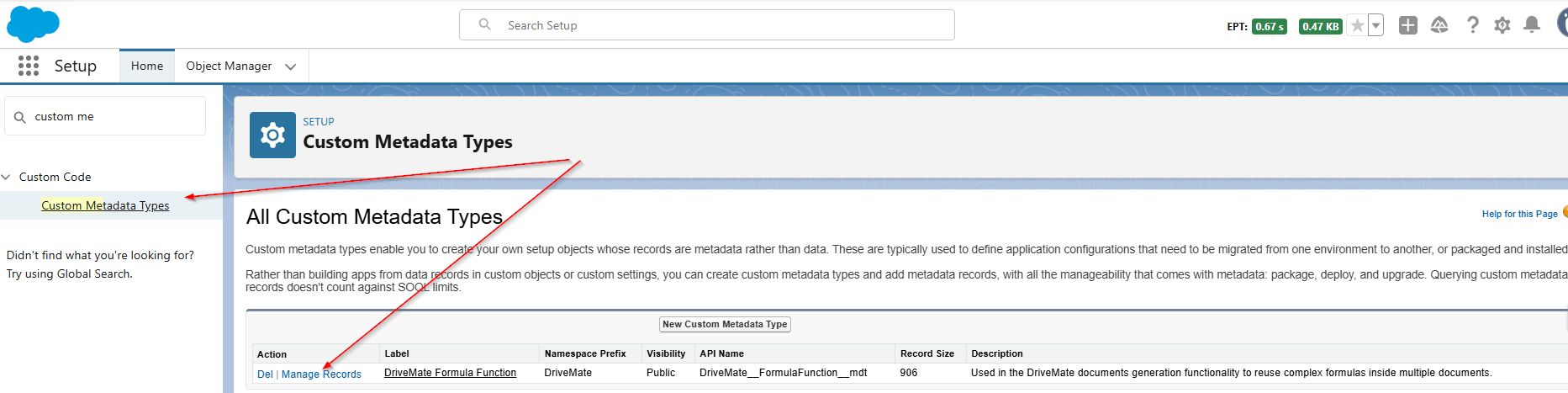
To create a formula function, go to Setup > Custom Metadata Types > DriveMate Formula Functions > Manage Records> New.
Fill in the details:
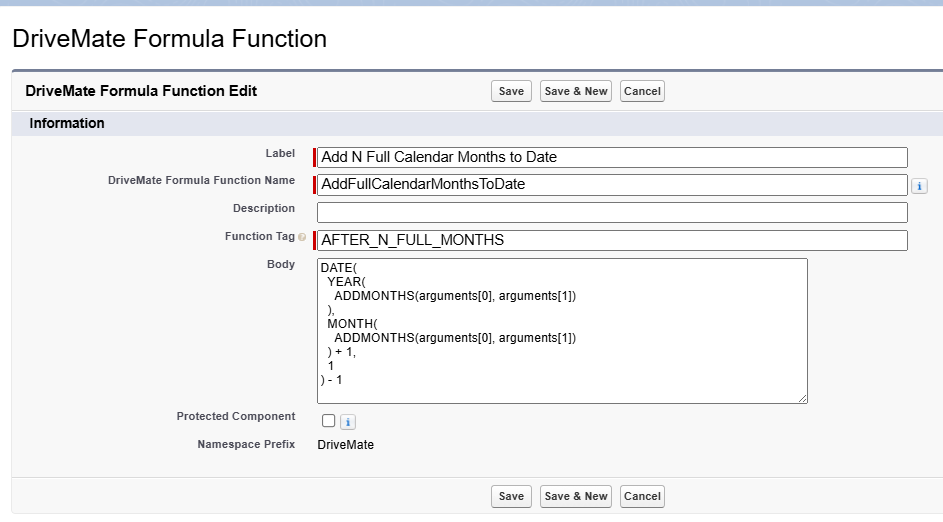
The most important fields you should focus on here are:
- Function Tag - This is how you'll reference the function in your formula (e.g.
{!AFTER_N_FULL_MONTHS(TODAY(),6)} - Body - This is where you put the body of the function. It must be in a Salesforce native formula mechanism format.
Arguments
A function can accept any number of arguments. To reference them in the function body, use the arguments[index] syntax.
E.g. to reference the first argument, write arguments[0], the second arguments[1], and so on.
Use Formula Function in document template
Now you can use the newly created function inside your document template.
Here's an example: Contract end date: {!AFTER_N_FULL_MONTHS(TODAY(), 6)}